
Geofencing for Construction Sites: Know Your Crew Is Actually On Site
Phone-based clock-in without location checks means trusting timestamps blindly. Geofencing adds GPS verification so you can approve timesheets with confidence.
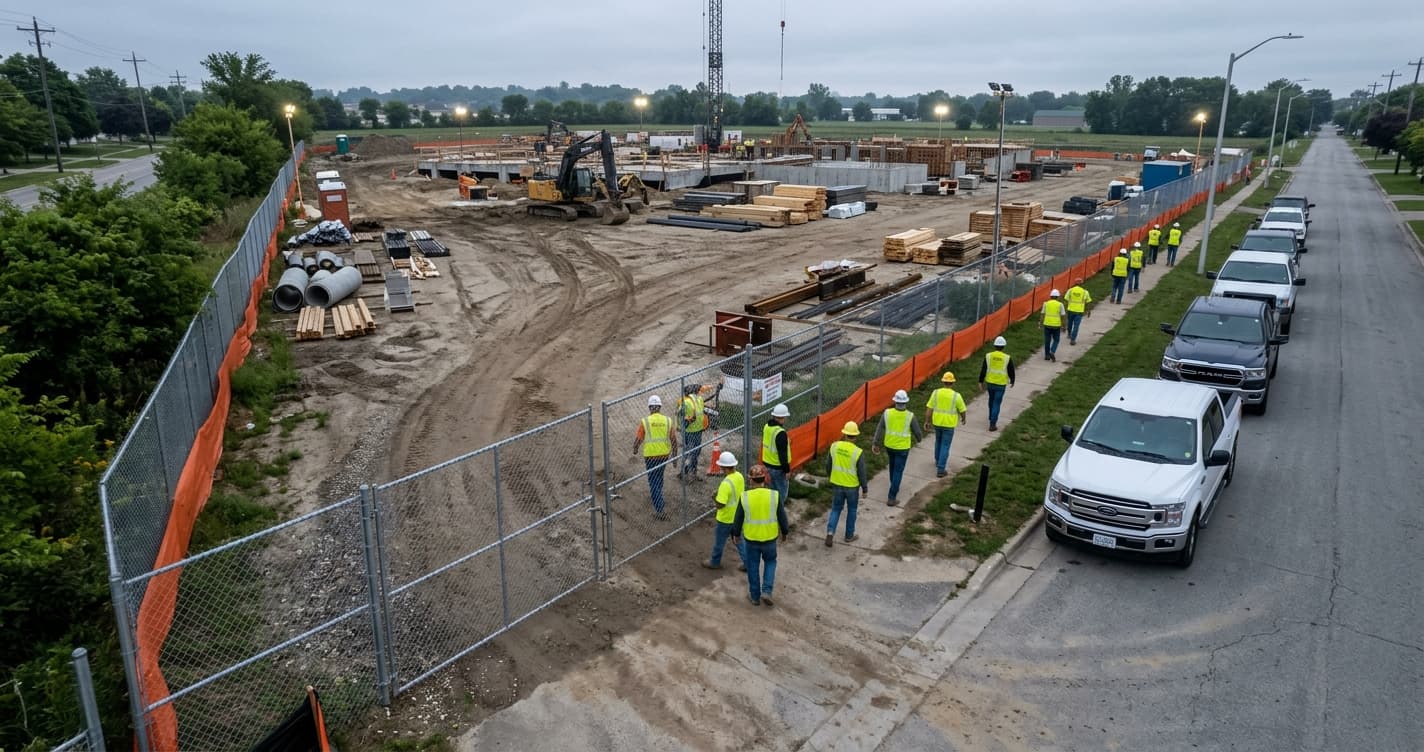
Your crew clocks in at 6:55 AM. All thirty of them, right on time, every morning. At least that's what the timesheets say.
But you're not at every site at 6:55 AM. Neither is the foreman, who's busy sorting out which crew takes which floor today. Nobody is standing at the gate checking whether each worker is actually on the job site when they tap "Clock In" on their phone.
Some workers clock in from home while they're still eating breakfast. Some do it from the truck on the way. Some are sitting in the parking lot waiting for the gate to open. None of this is necessarily dishonest. Most of the time it's habit. They know they'll be on site in ten minutes, so they punch in early and start their day.
The problem is that across a crew of 30+ people doing this every day, those extra minutes add up. Five minutes here, ten minutes there. Over a pay period, you're looking at hours of payroll that nobody actually worked on site. Multiply that across a year, and it's a real number.
You can't be everywhere at once
This is the core tension of managing field crews. Your workers are spread across multiple sites. You might have three active projects running in different parts of the city. You trust your foremen, but their job is running the work, not auditing clock-in times.
Without some kind of location check, phone-based time tracking is just a faster version of the honor system. The timestamps are digital instead of handwritten, but they're still unverified. You're trading a paper timesheet for a digital one with the same blind spots.
And when payroll disputes come up, you've got nothing to point to. A worker says they clocked in at 7:00 AM on site. You think they were late. Who's right? Without GPS data, it's your word against theirs.
How geofencing works in WorkxPro
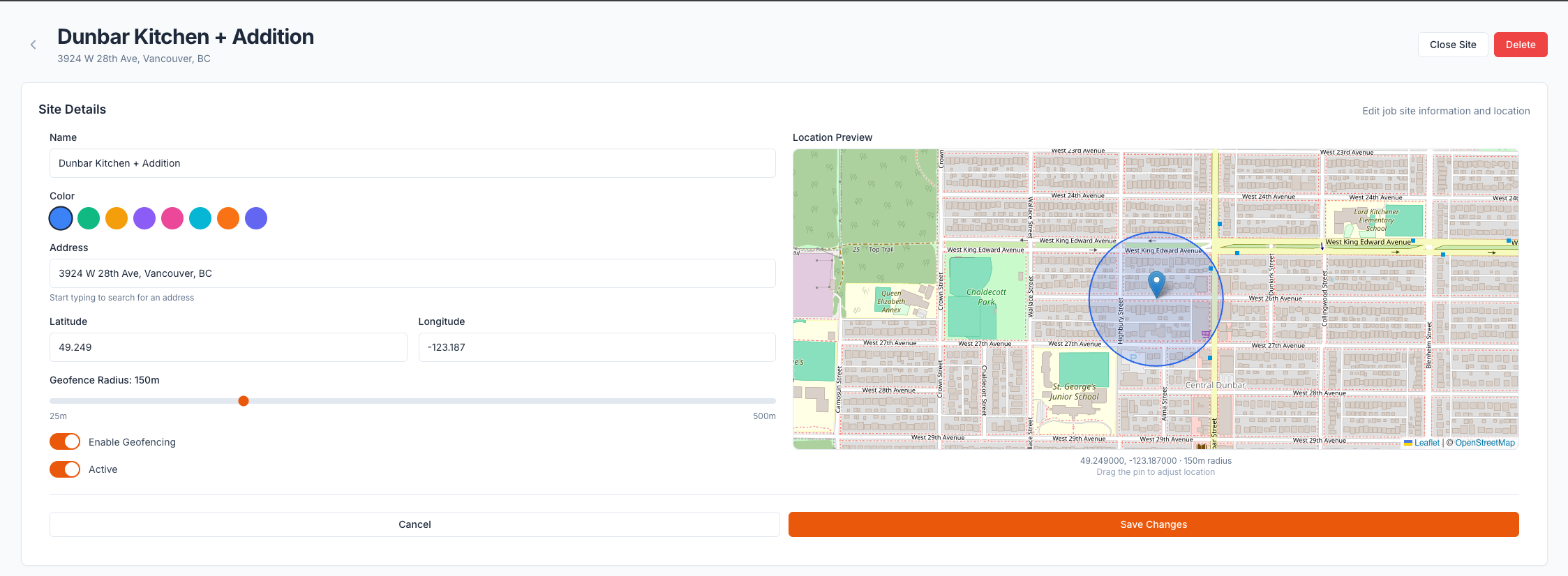
Geofencing is simple in concept. You draw a virtual boundary around each job site, set the radius, and the system checks GPS coordinates when a worker clocks in or out.
In WorkxPro, you set this up per job site. Each site gets its own geofence radius, because a tight urban renovation and a sprawling subdivision need different boundaries. When a worker opens the app and taps "Clock In," their GPS location is compared against the geofence of the job site they selected.
If they're inside the boundary, the entry is recorded normally. If they're outside the boundary, the entry is flagged with a location mismatch.
That flag is where things get interesting.
Flagged, not blocked. That's the point.
This is the part most geofencing tools get wrong. They treat it as a binary gate. You're inside the zone? You can clock in. You're outside the zone? Rejected. Try again when you're closer.
That sounds clean in theory. In practice, it creates problems.
Workers sometimes need to clock in from a supply yard before heading to the site. A foreman might start their day at the office reviewing plans, then drive to the site. A worker's GPS might drift because they're near a tall building or in a low-signal area. A strict block punishes all of these situations equally, and it generates phone calls to the office every time someone gets locked out.
WorkxPro takes a different approach by default. When a worker clocks in outside the geofence, the entry goes through. It's recorded, timestamped, and GPS-tagged just like any other entry. But it carries a location mismatch flag.
That flag shows up during the approval process. When the admin or supervisor reviews timesheets for the week, entries with location mismatches are clearly marked. They can see exactly where the worker was when they clocked in, how far they were from the job site, and make a judgment call.
Maybe the worker was at the supply house picking up materials. Approved. Maybe they were sitting at home and forgot to clock in later. Denied, or adjusted. Maybe their GPS drifted 50 feet outside the geofence on a rural site with spotty signal. Approved, no issue.
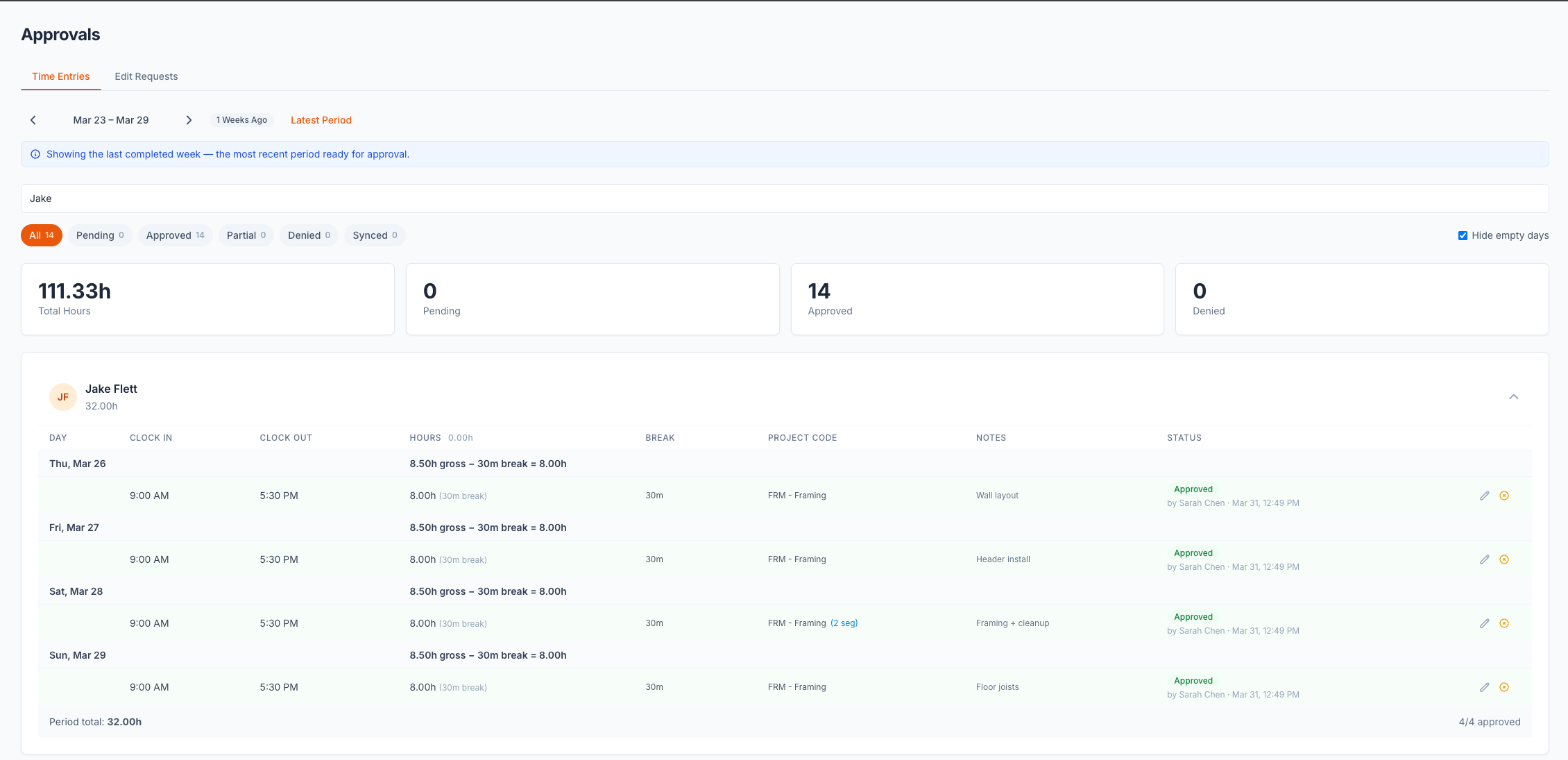
The data is there. The context is there. The decision stays with the person who knows what actually happened that day. That's fair for the worker who had a legitimate reason to be off site, and it's fair for the company that needs accurate payroll.
Hard mode is there if you need it
Some companies and some sites need strict enforcement. A secure facility, a government contract with strict site access requirements, or a site where you've had repeated issues with early clock-ins.
WorkxPro lets you turn on hard mode per job site. When it's on, workers cannot clock in outside the geofence. The app will tell them they're outside the job site boundary and they need to move closer before clocking in.
You can mix and match. Hard mode on the high-security site, soft mode on everything else. The setting lives on the job site, not the whole company, so you have control where you need it without locking down crews who don't need it.
Most companies find that the default flagging approach is enough. Once workers know their location is being checked, behavior changes on its own. The flag is a nudge, not a punishment.
Clock-out verification works the same way
Clock-in gets all the attention, but clock-out matters just as much. A worker who leaves the site at 3:00 PM but doesn't clock out until they get home at 3:30 PM is adding 30 minutes to every shift. That's 2.5 hours a week of paid time that wasn't spent on site.
WorkxPro checks GPS on clock-out too. If a worker clocks out from outside the job site geofence, the mismatch is flagged and surfaced during approval, the same way clock-in mismatches are handled.
This closes the gap on both ends of the shift. Clock-in verification alone only solves half the problem.
Clean data, not surveillance
There's a fair concern that GPS tracking feels like surveillance. Nobody wants to feel like their employer is watching their every move.
Geofencing in WorkxPro isn't continuous tracking. It checks location at two moments: clock-in and clock-out. That's it. It doesn't track where workers go during the day. It doesn't record their route to work. It answers one question: was this person at the job site when they said they were?
That protects workers too. When their hours are GPS-verified, there's no room for someone in the office to question whether they were actually on site. The data backs them up. No more "I think he was late" conversations that go nowhere. The timestamp and the location are both recorded, and both sides can see the facts.
For the office, it means timesheet approval goes from guesswork to data. You're not rubber-stamping entries and hoping they're accurate. You're reviewing verified data with clear flags on anything that needs a second look.
What this looks like in practice
A typical setup takes about five minutes per job site. You enter the site address, set the geofence radius (WorkxPro suggests a default, but you can adjust it), and you're done. Workers don't need to do anything different. They clock in and out the same way they always have. The GPS check happens in the background.
At the end of the week, when the admin sits down to approve timesheets, entries with location mismatches are clearly visible. They make their approvals, flag anything that needs a conversation, and move on. The whole approval process is faster because the data is already organized and verified.
No more guessing. No more disputes. Just facts.
Try it on your next project
Geofencing is available on all WorkxPro plans. Set up your first job site with a geofence, invite your crew, and see the data come in on your next shift.
14-day free trial. No credit card required.