Clock in and out with one tap, verified on the spot.
- Clock in and out from any phone, right at the job site
- GPS-stamped punches that work with no signal
- Hours that hit payroll are proof, not promises
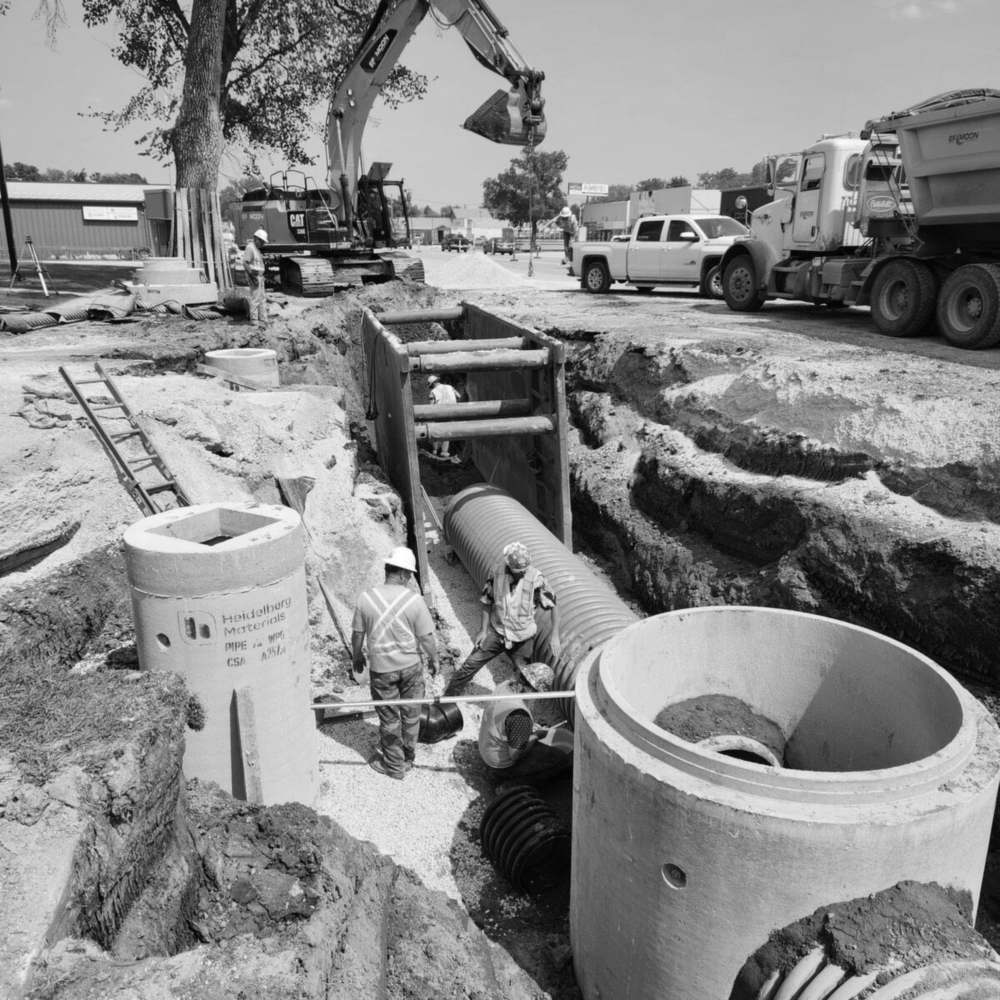
Paper timesheets guess. Your crew's phone knows.
Rounded-up hours you can't question
When start and stop times come from memory at the end of the week, every number rounds in the worker's favor and you have no way to check.
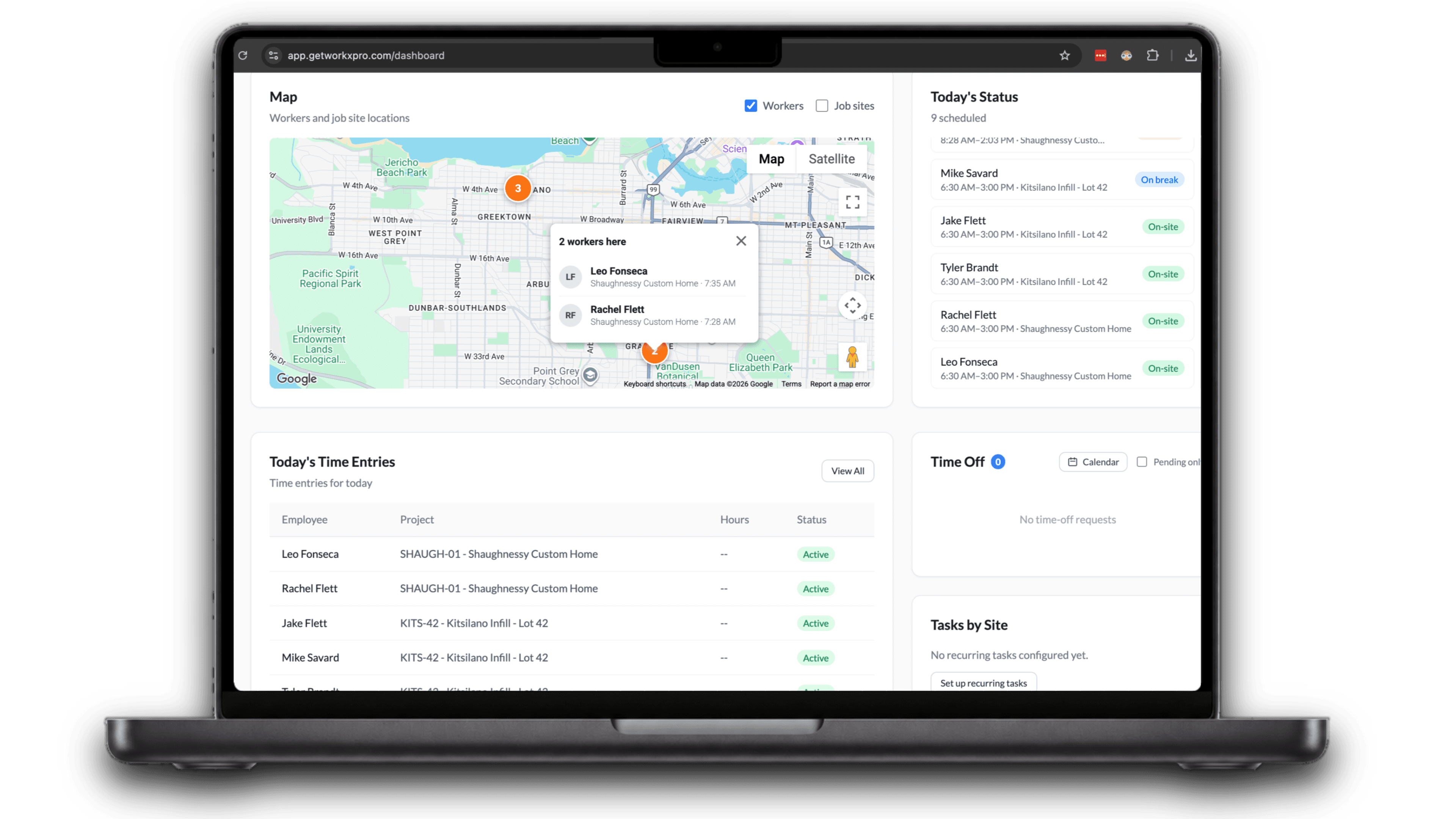
No idea where anyone actually clocked in
A punch on a paper sheet says nothing about where it happened. Home, the truck, the job site next door. It all looks the same.
Forgotten punches you fix by hand
Someone forgets to clock out and you spend Monday chasing the foreman to reconstruct a shift that ended two days ago.
Everything for the shift, on one screen
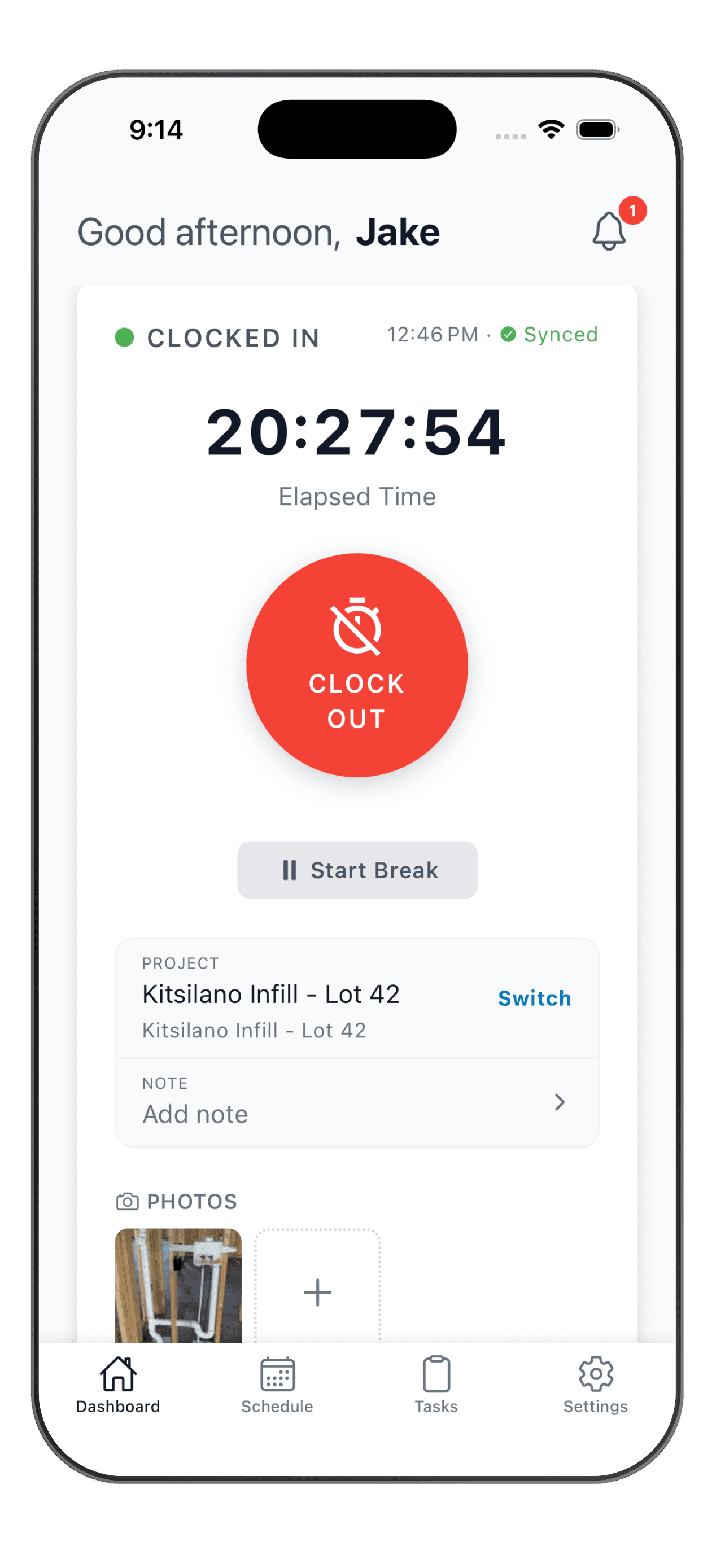
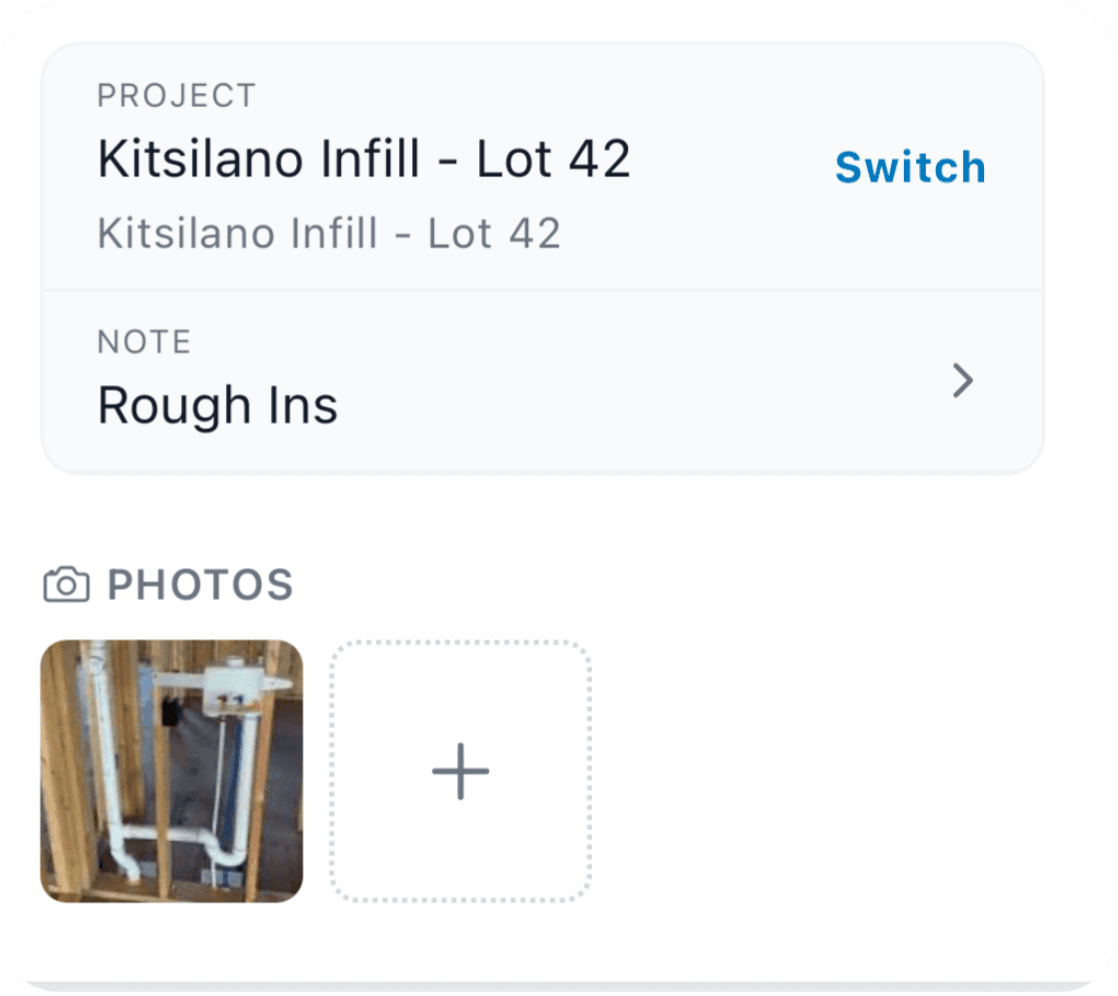
Clock in and the whole shift is in reach. The active project, a note for what got done, and photos from the field, all in one place. Switch projects mid-shift without clocking out, so every hour lands on the right job.
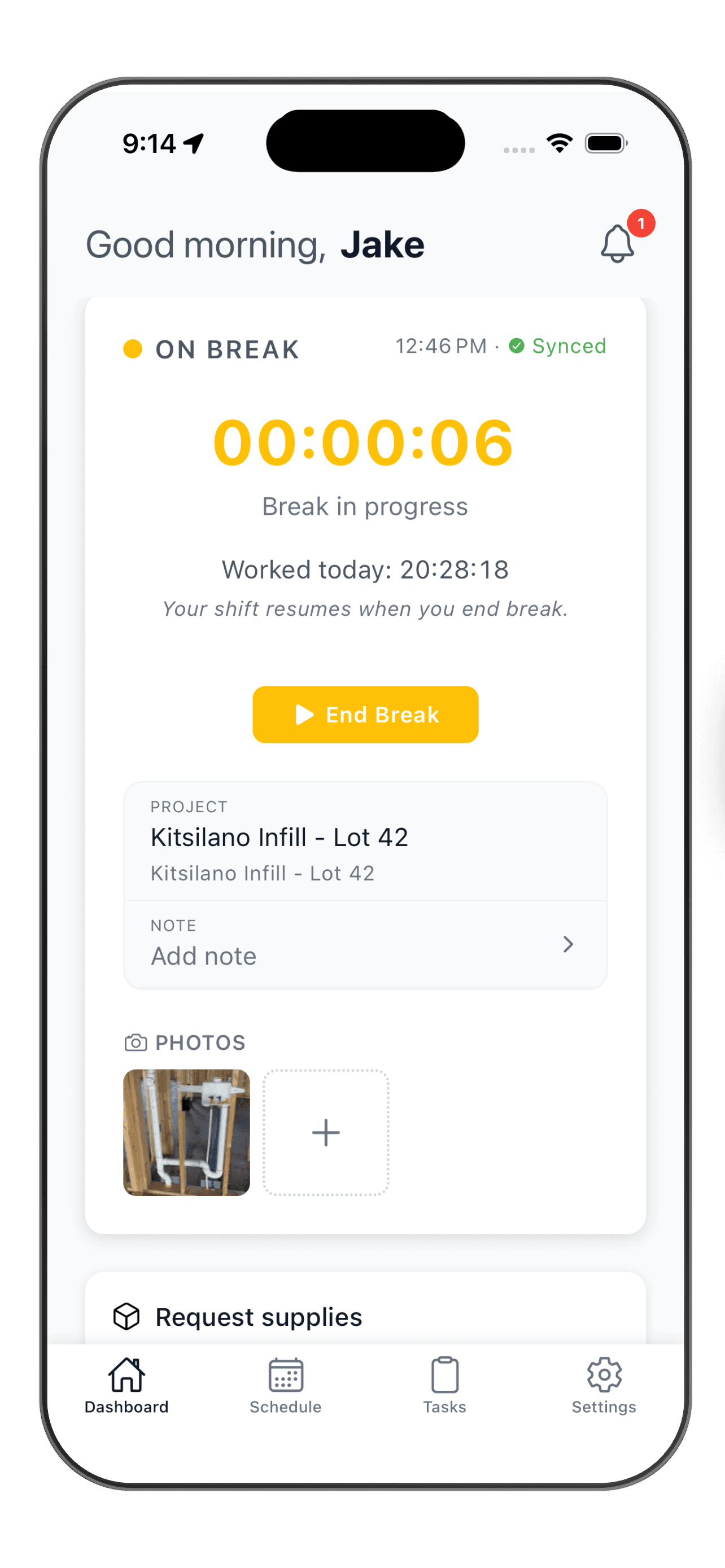
Breaks without clocking out
Start a break with one tap and the shift timer pauses. End it, and the clock picks right back up. Break time is tracked on its own, so paid and unpaid hours stay clean all the way to payroll.
The clock stays visible, even when the app is closed
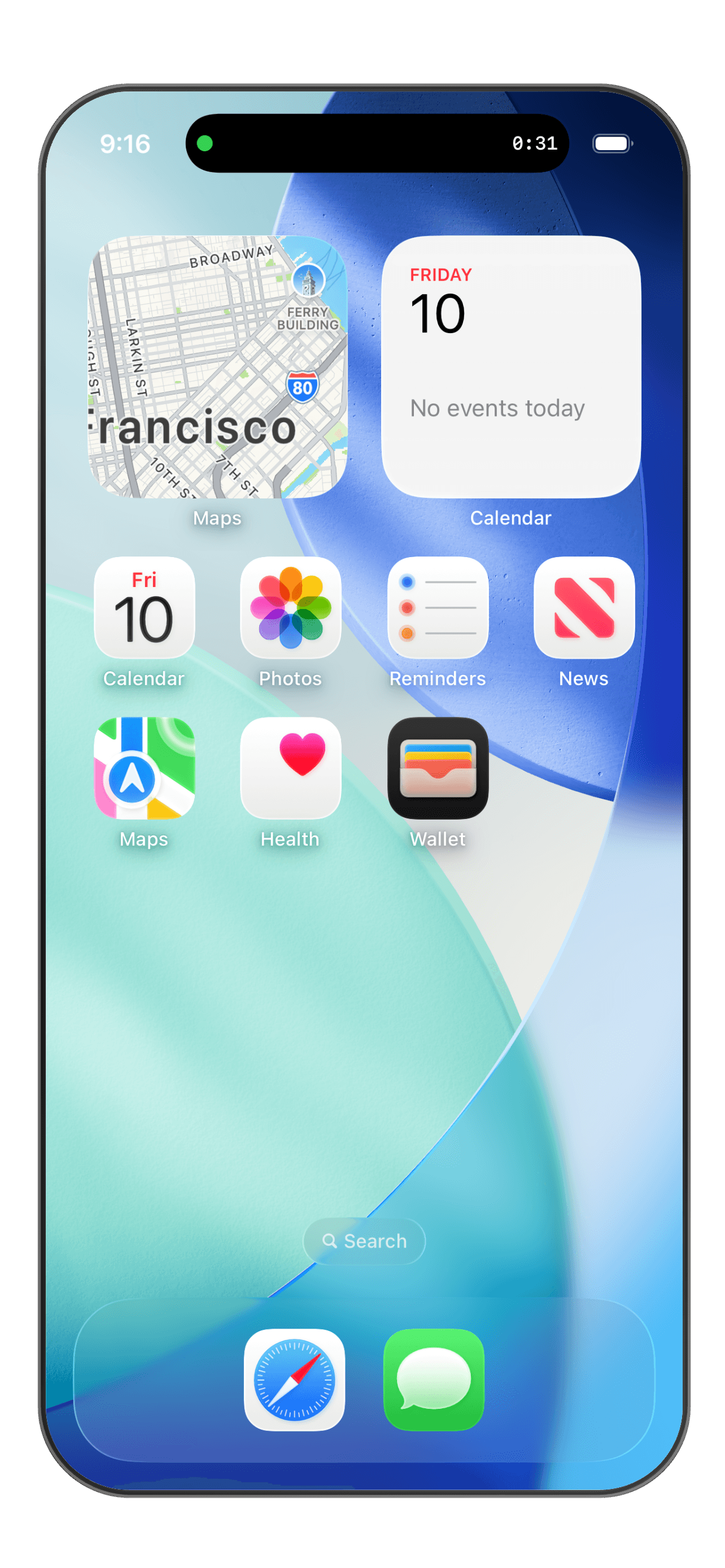
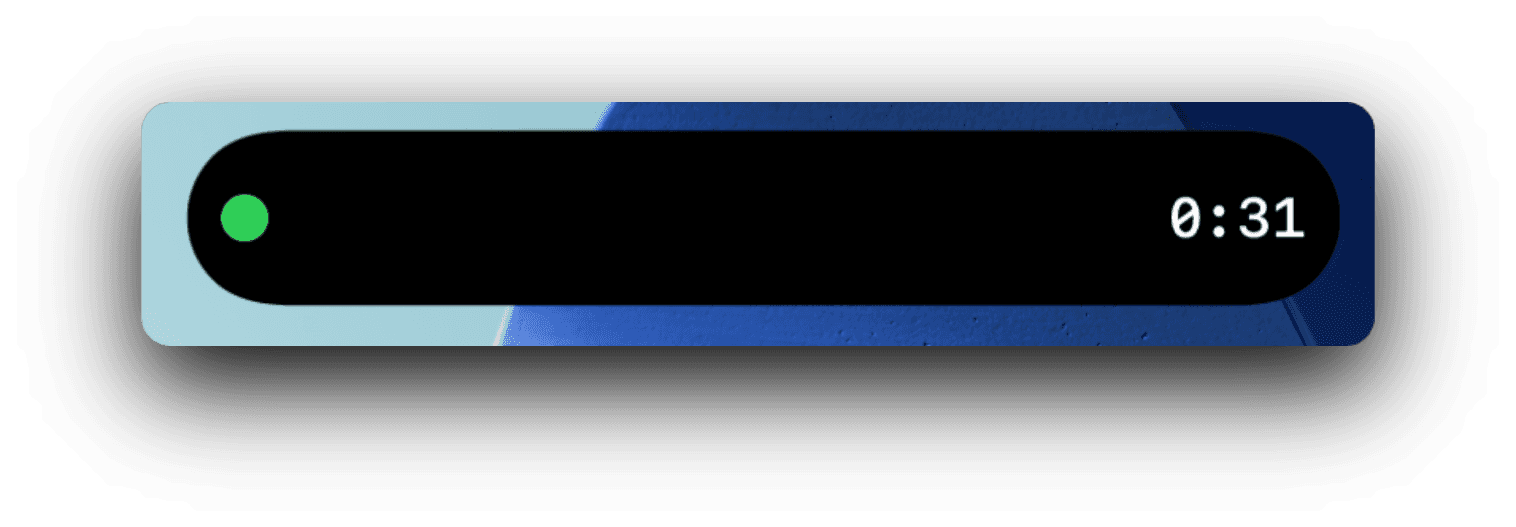
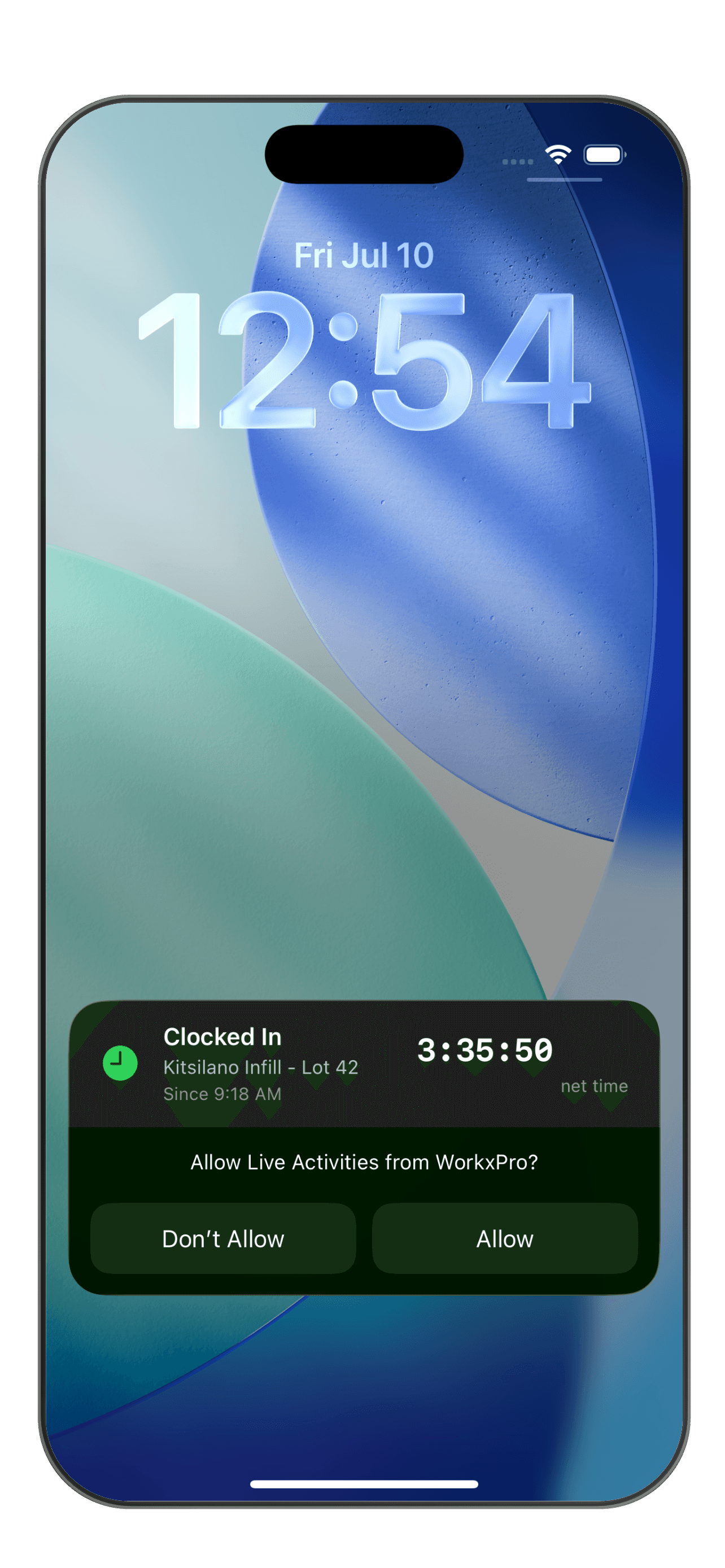
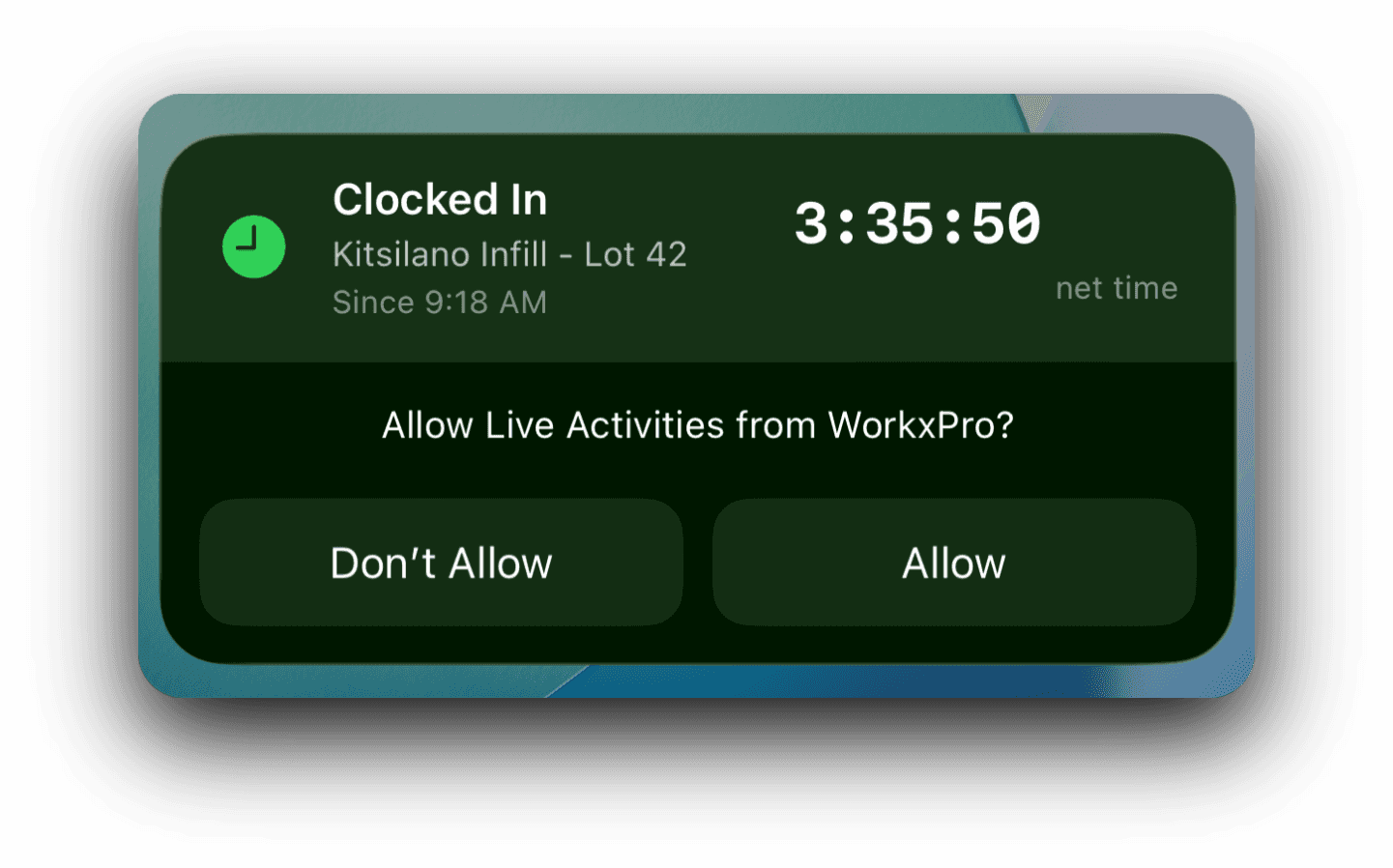
A Live Activity keeps the running timer on the lock screen and in the Dynamic Island. Workers always know they're on the clock, so far fewer shifts run long by accident.


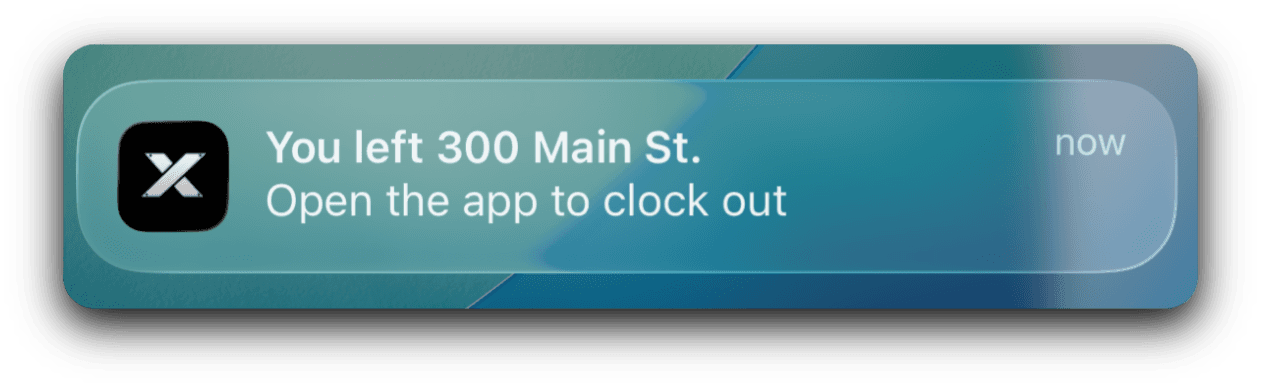
Arrive, get a reminder. Leave, get another.
WorkxPro watches the job site geofence. Show up without clocking in, and the phone sends a nudge. Drive off still on the clock, and it asks for the clock-out. No automatic punches, just the right reminder at the right moment, so nobody spends Monday reconstructing a shift.
You set the rules from your desk
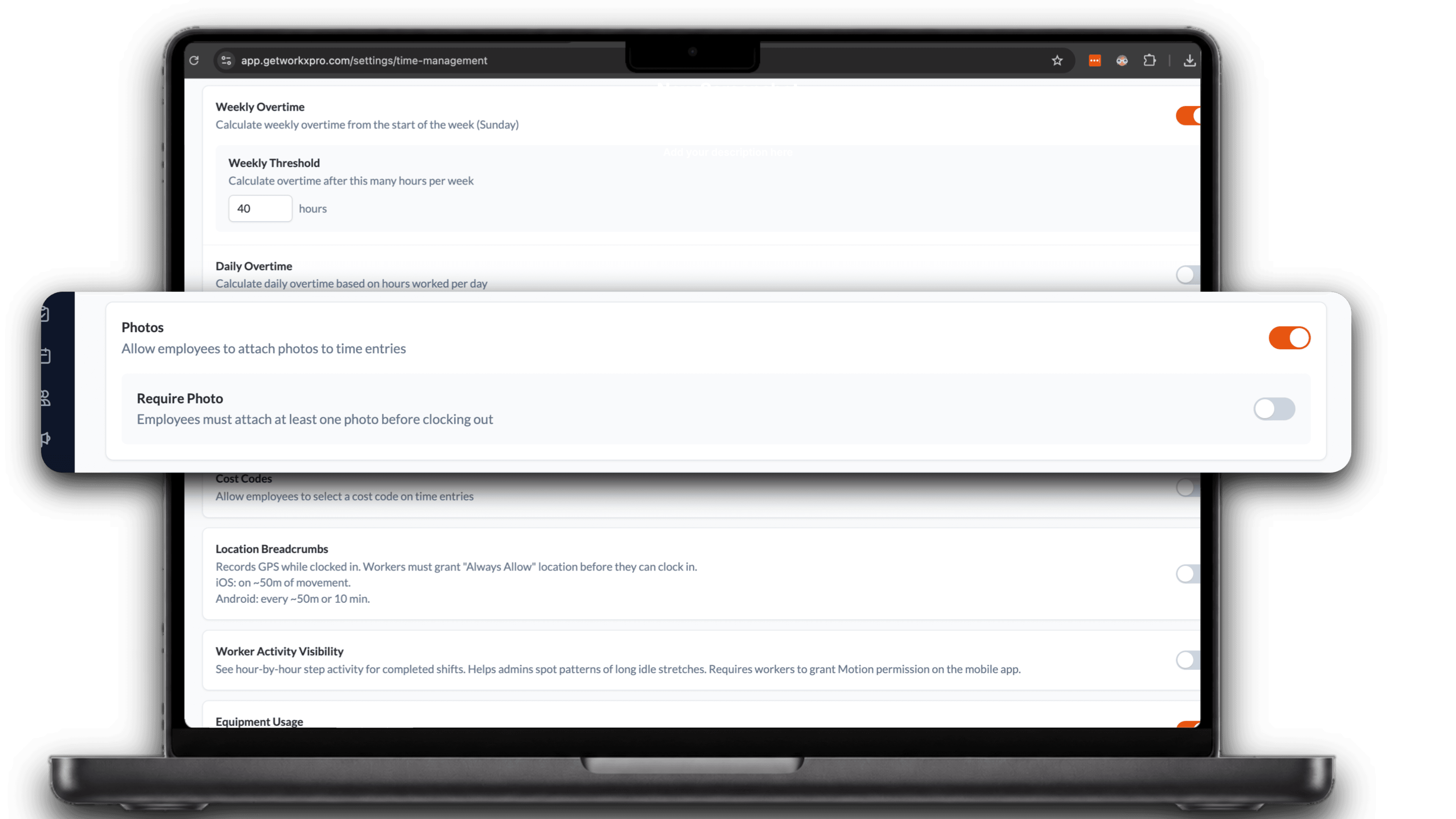
Clocking in works the way your company runs. Set these from the admin portal and they apply to every worker on their next punch.
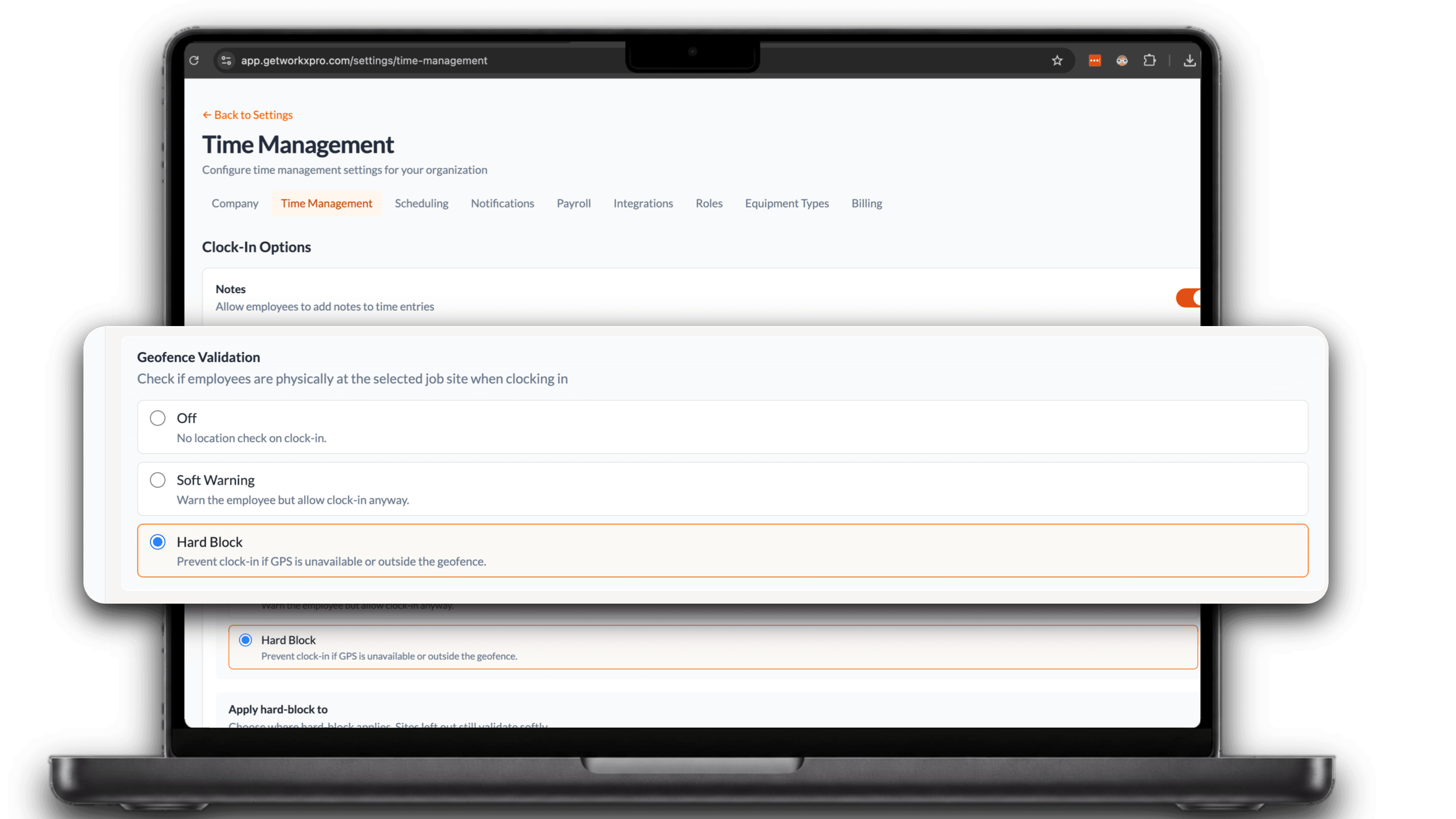
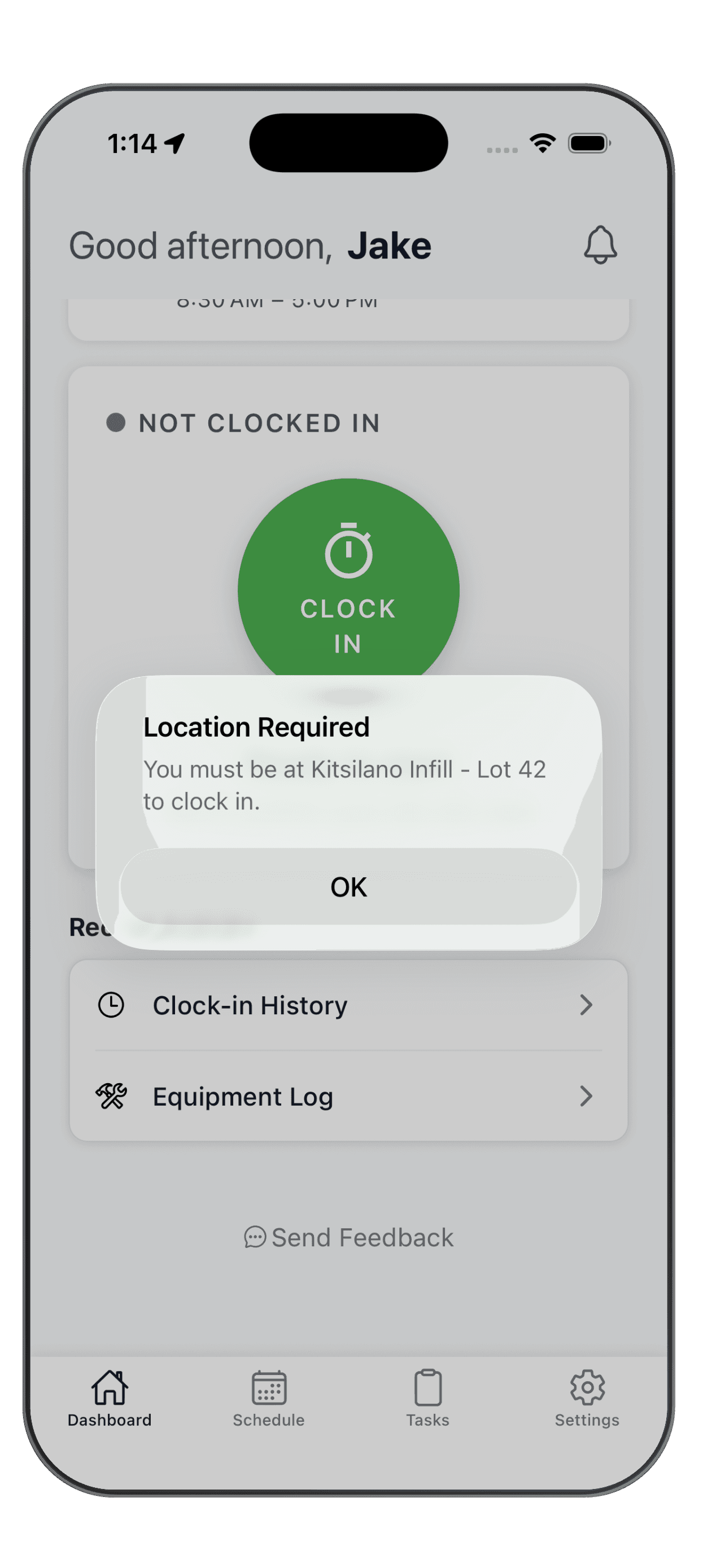
Block clock-ins from off-site
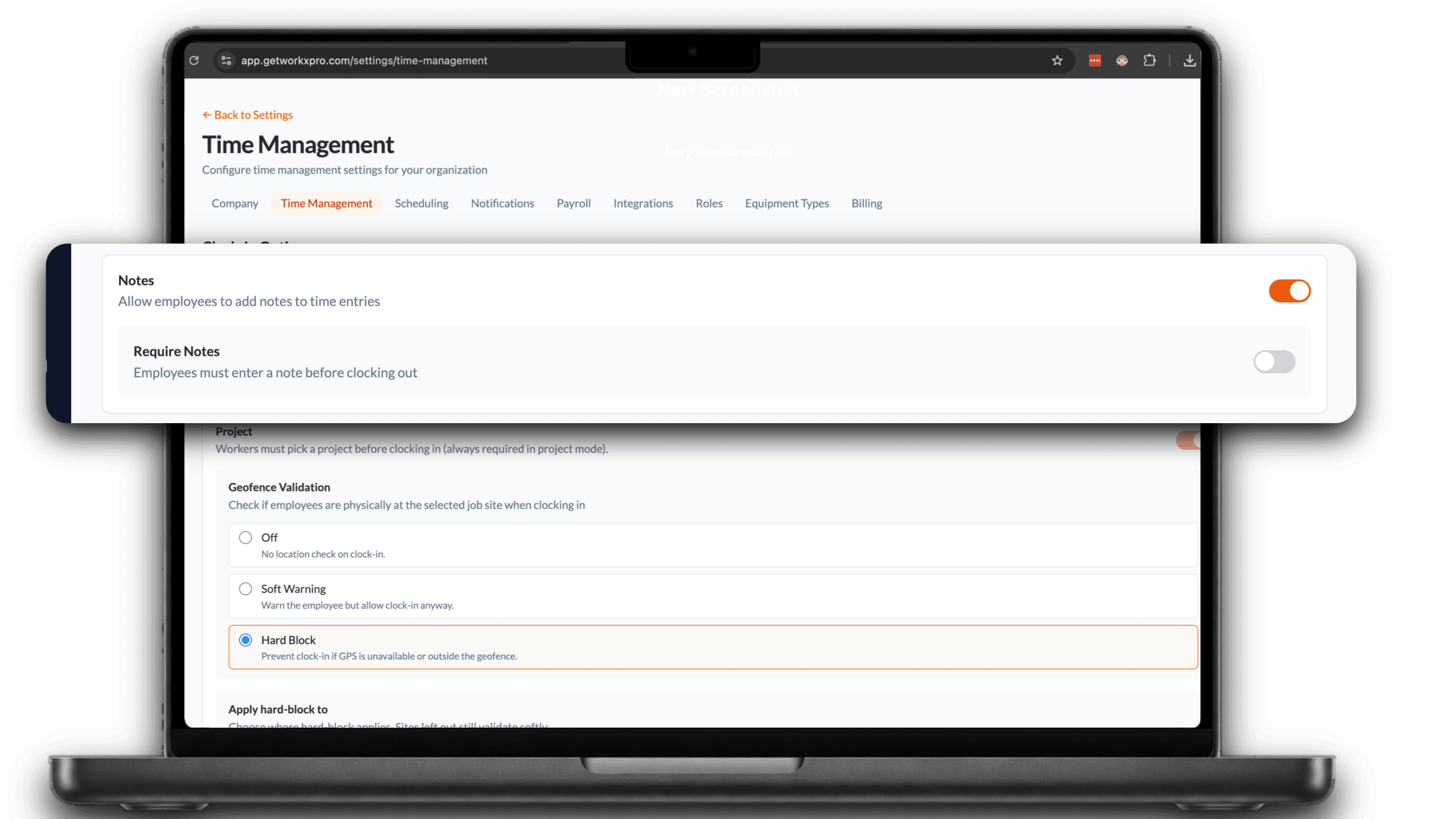
Decide what happens when someone clocks in away from the job site. Turn it off, show a soft warning, or hard-block the punch when GPS is missing or outside the geofence.
Require a note before clock-out
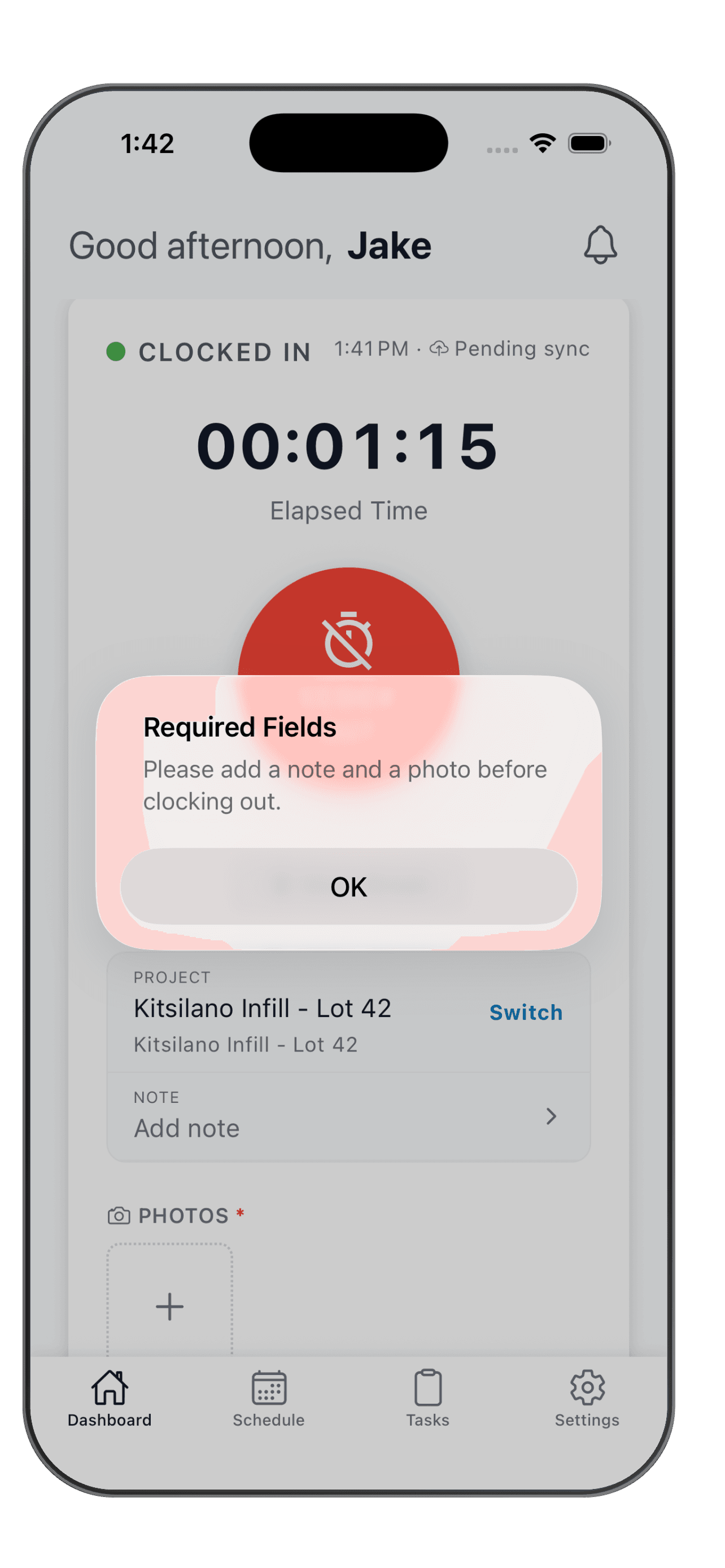
Let workers add notes to any entry, or require one before they can clock out, so every shift comes back with context instead of just a number.
Ask for a photo, or track the whole route
Require a photo before clock-out, and record GPS breadcrumbs while workers are on the clock. Proof of where the work happened, from the first punch to the last.