
How to set up and use banked hours
Updated September 25, 2026
Banked hours, also called banked overtime or time off in lieu, let a worker keep overtime as time instead of cash: one hour of overtime banks one hour. In WorkxPro an admin turns it on per worker, the worker or an approver picks bank or pay for each week, and the worker spends the balance later as paid time off from the mobile app. It needs an overtime threshold, and it is unavailable while a payroll integration is connected.
Turn on an overtime threshold
Settings, then Time Management. Banked hours needs a daily or weekly overtime threshold, and it is not available while a payroll integration is connected.

Start banking for a worker
Open the employee, scroll to Banked Hours and click Start banking. Banking begins with the current week. Enter an opening balance if the worker already holds hours from before.

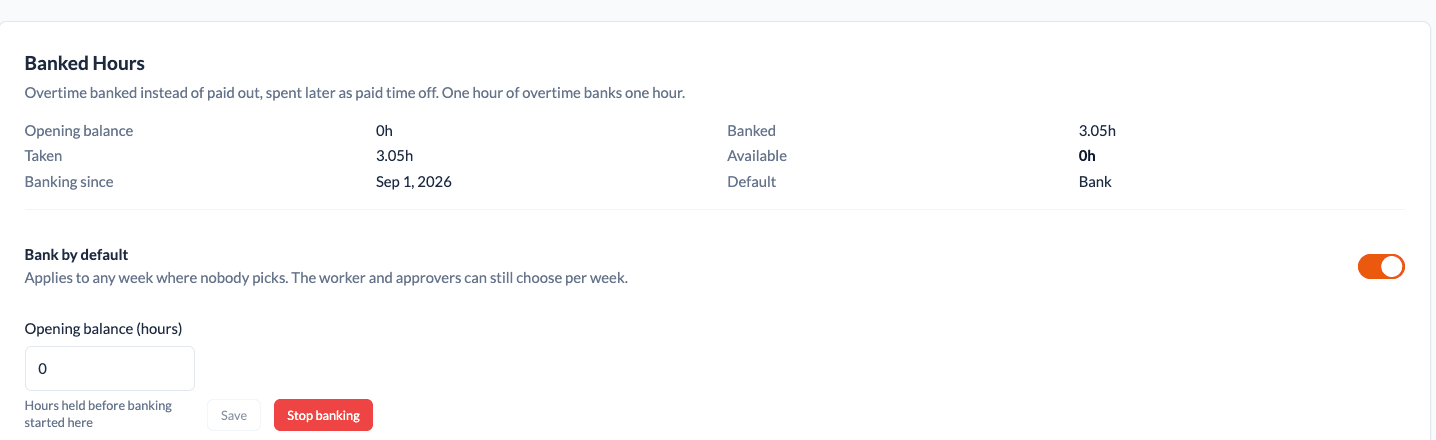
Set the default and watch the balance
Bank by default means any week nobody decides on is banked. The card shows the balance, each week's decision, and every day paid from the bank. Stop banking pays overtime out from then on; the balance stays until it is spent.
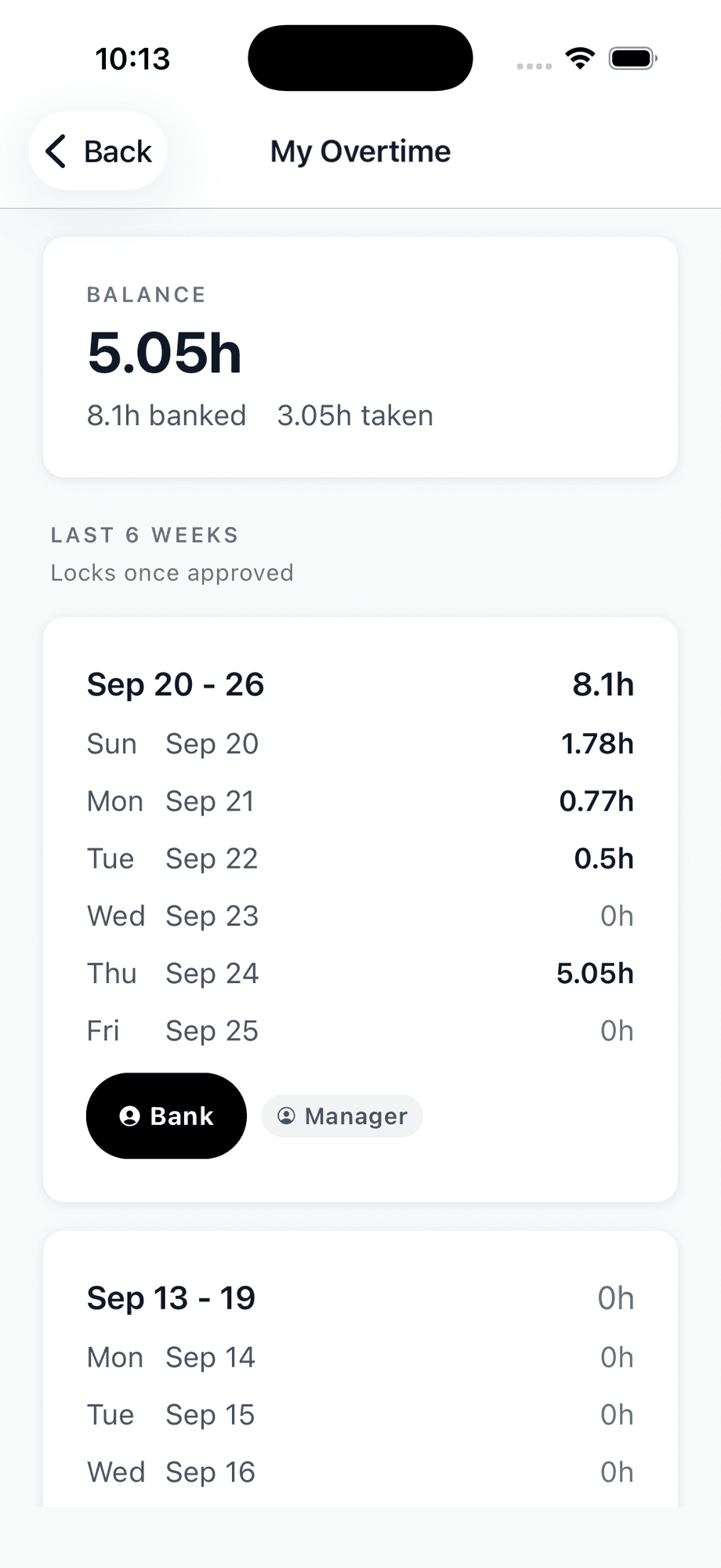
The worker picks bank or pay for each week
In the app, My Time has an Overtime button. Each week shows the days with overtime and one choice, Bank or Paid. The choice locks once the first shift in that week is approved.
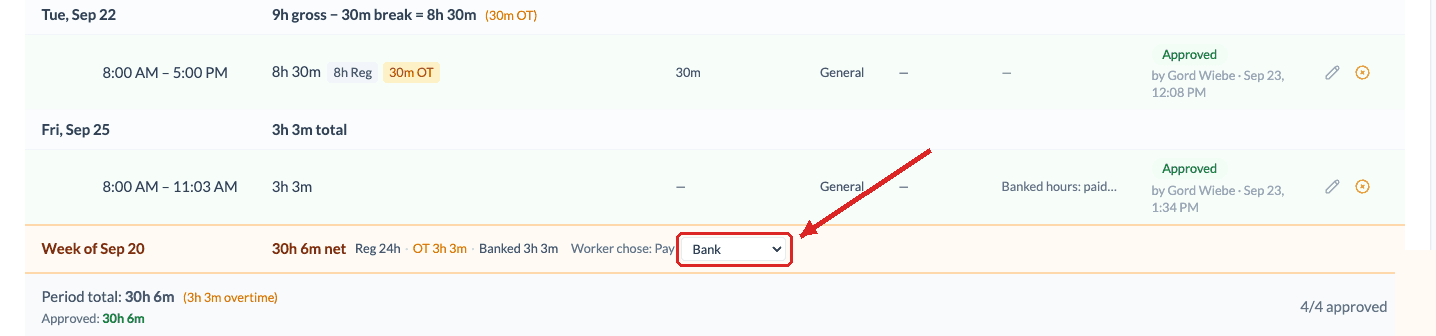
Approvers see and can change the choice
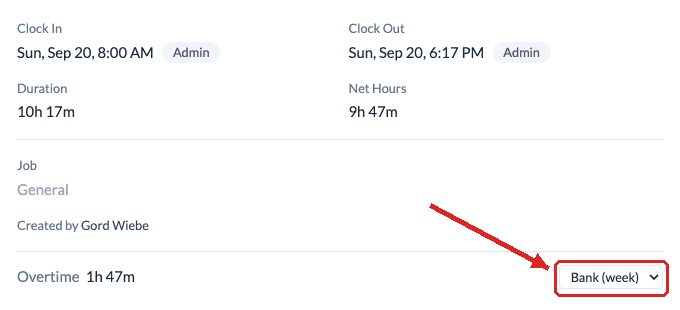
On Approvals, each worker's week row shows what they chose. An approver can override it for the week. Inside a shift, the Overtime line can pin that one shift to Bank or Pay.
Pin a single shift
Take banked hours as paid time off
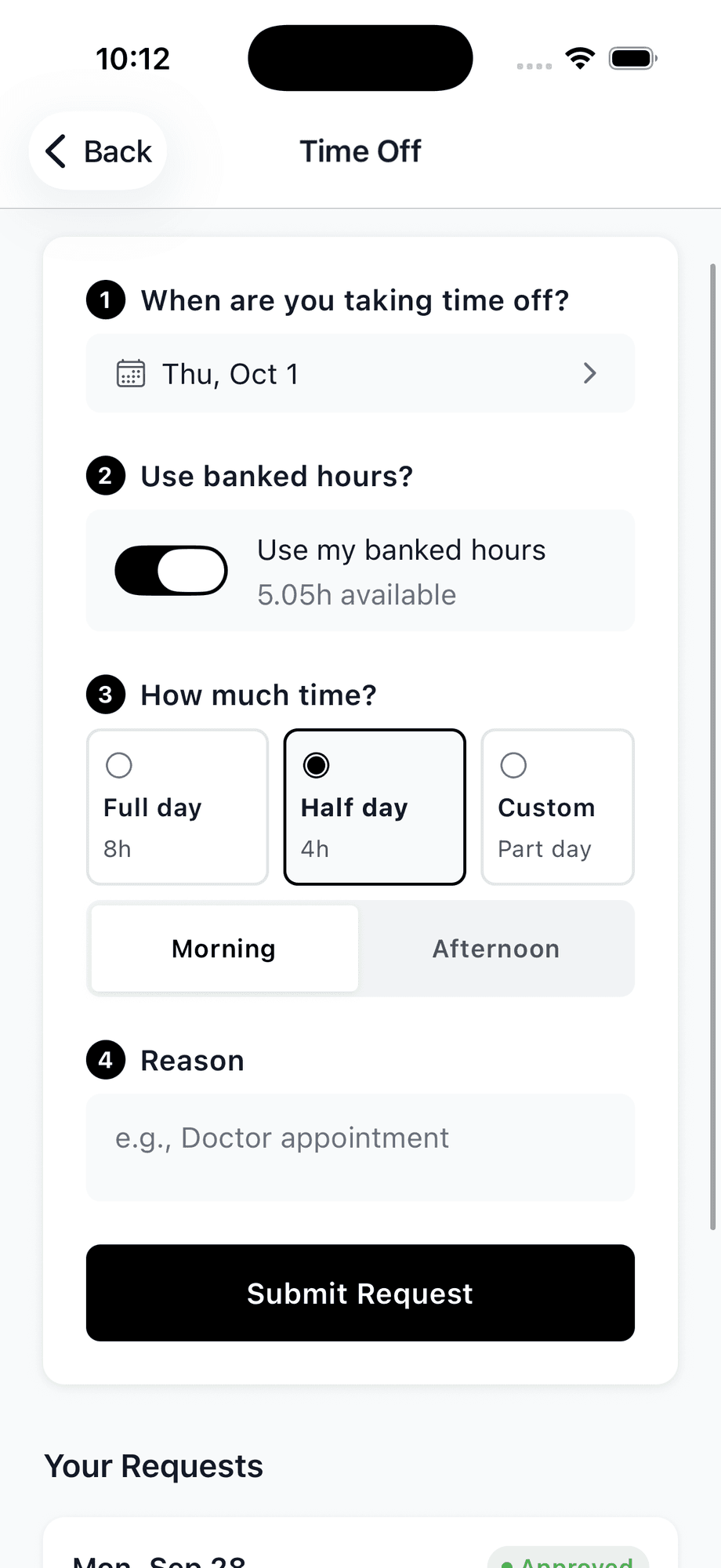
In the app, Time Off. Pick the dates, turn on Use my banked hours, then choose Full day, Half day or Custom for part of a day. Anything the bank cannot cover is shown before submitting.
Approve it like any other request
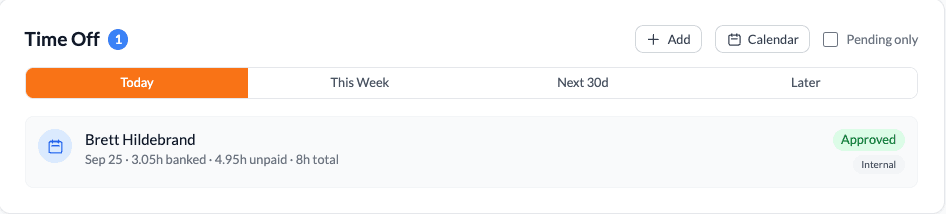
The dashboard Time Off card lists the request with the split: hours from the bank, hours unpaid, total. Approving creates a paid time entry for the banked part; the rest is regular unpaid time off.
The paid hours show up as a regular approved entry
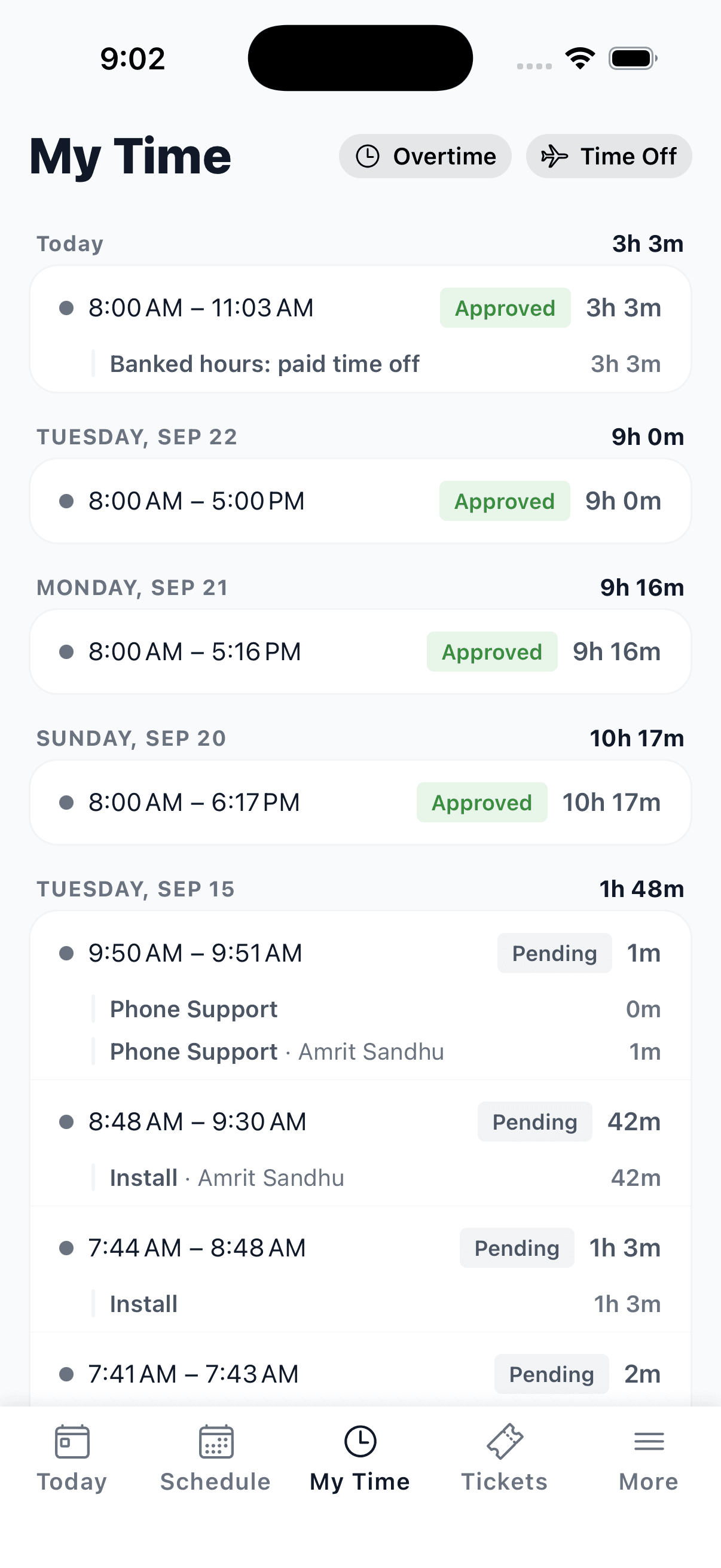
The banked part becomes a time entry on that day, already approved, with the note Banked hours: paid time off. It pays like any other hours and never counts toward overtime again.

The worker sees it too
On My Time, the same entry shows as approved under the day, so the paid hours are never a surprise on payday.
Common questions
What are banked hours?
Banked hours are overtime a worker keeps as time instead of being paid out. The hours sit in a balance and are taken later as paid time off. Other names for the same thing are banked overtime, time off in lieu (TOIL) and comp time.
Can employees bank overtime instead of being paid for it?
In many places yes, usually with a written agreement between the employer and the worker, and often at the same rate the overtime would have been paid. Rules differ by province and state, so check your employment standards before turning it on. WorkxPro records the agreement date and every bank-or-pay decision.
How does WorkxPro decide which hours get banked?
Overtime comes from the daily or weekly threshold you set in Time Management. For each week, the worker picks bank or pay in the app, an approver can override it, and once the first shift in that week is approved the choice is locked. Approved overtime for a banked week is added to the balance one hour for one hour.
How does a worker use banked hours?
From Time Off in the mobile app: pick the dates, turn on Use my banked hours, and choose a full day, half day or part of a day. When an admin approves it, the bank pays what it can and the rest is unpaid time off, and a paid time entry is created for that day.
What if the balance does not cover the whole request?
The request goes through, the bank pays the hours it has, and the remainder is unpaid time off. The split is shown to the worker before they submit and to the approver before they approve.
Does banked hours work with Payworks or Sage 50?
Not yet. Banking cannot be turned on while a payroll integration is connected, because the export would pay the banked overtime a second time. Companies that run payroll from the timesheet report can use it today.
Follow along in your own account.
Start Free Trial