
How to require a reason for clocking in or out off-site
Updated October 2, 2026
When Require Reason Outside Geofence is on, a worker whose phone is not inside the job site geofence cannot clock in or out until they type a short reason, such as picking up supplies or forgetting to clock out on site. The reason is saved with the time entry and shown next to the geofence warning in the portal, so the office knows why the pin is off-site without a phone call.
Turn it on
Settings, then Time Management. Under Location, set Geofence Validation to Soft Warning, then turn on Require Reason Outside Geofence. Clock-Out Geofence Prompt turns on with it, so clock-outs are covered too.
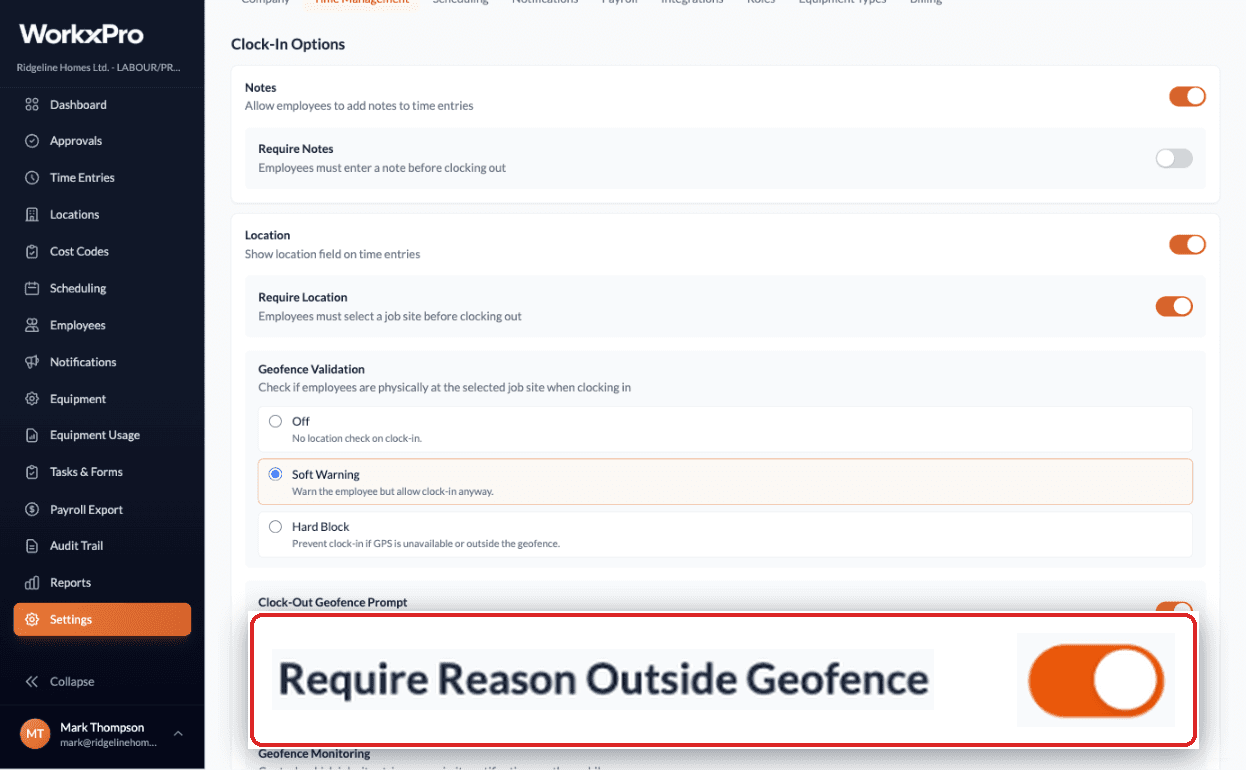
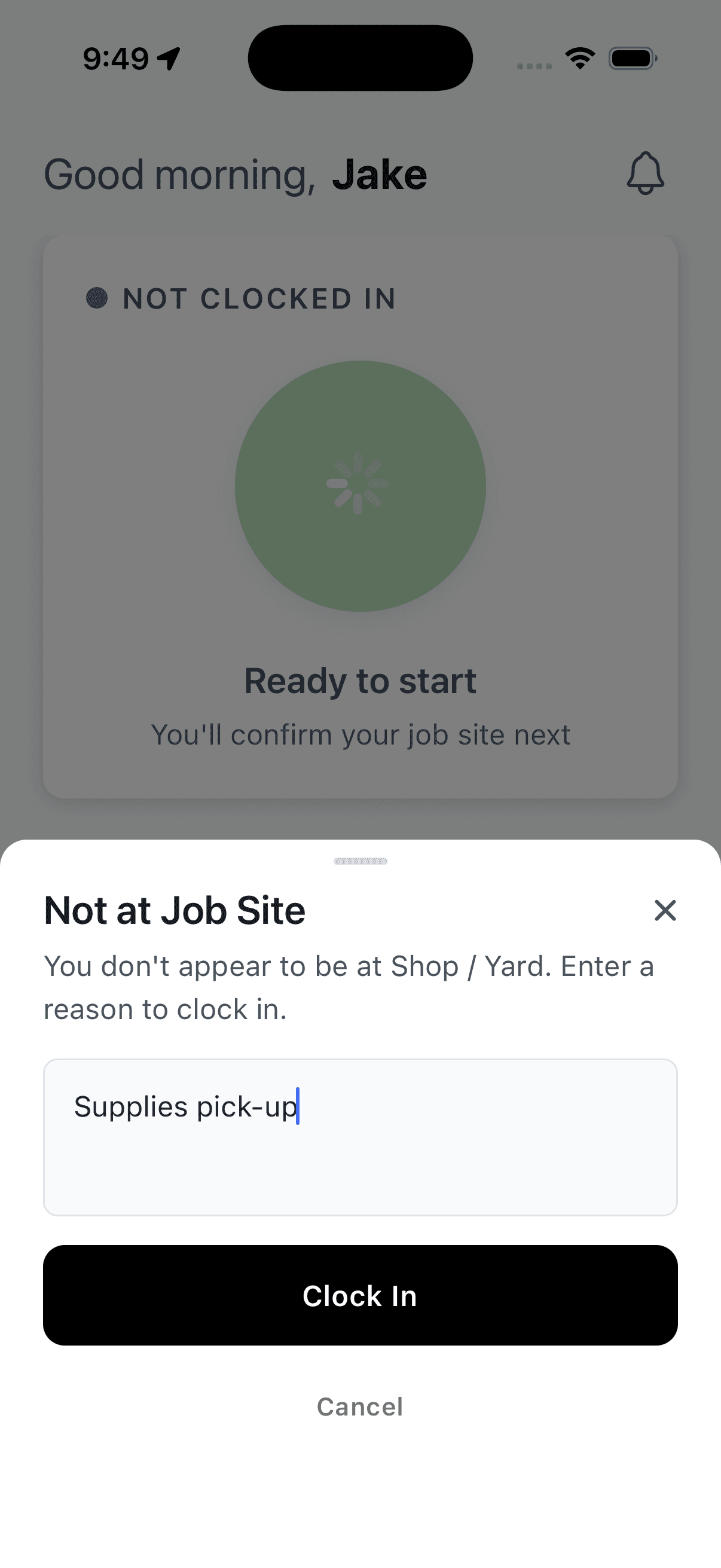
The worker is asked for a reason
When the phone is outside the geofence of the site they picked, the app opens Not at Job Site. Clock In stays off until they type a reason. Cancel leaves the shift as it was. Clock-out works the same way.
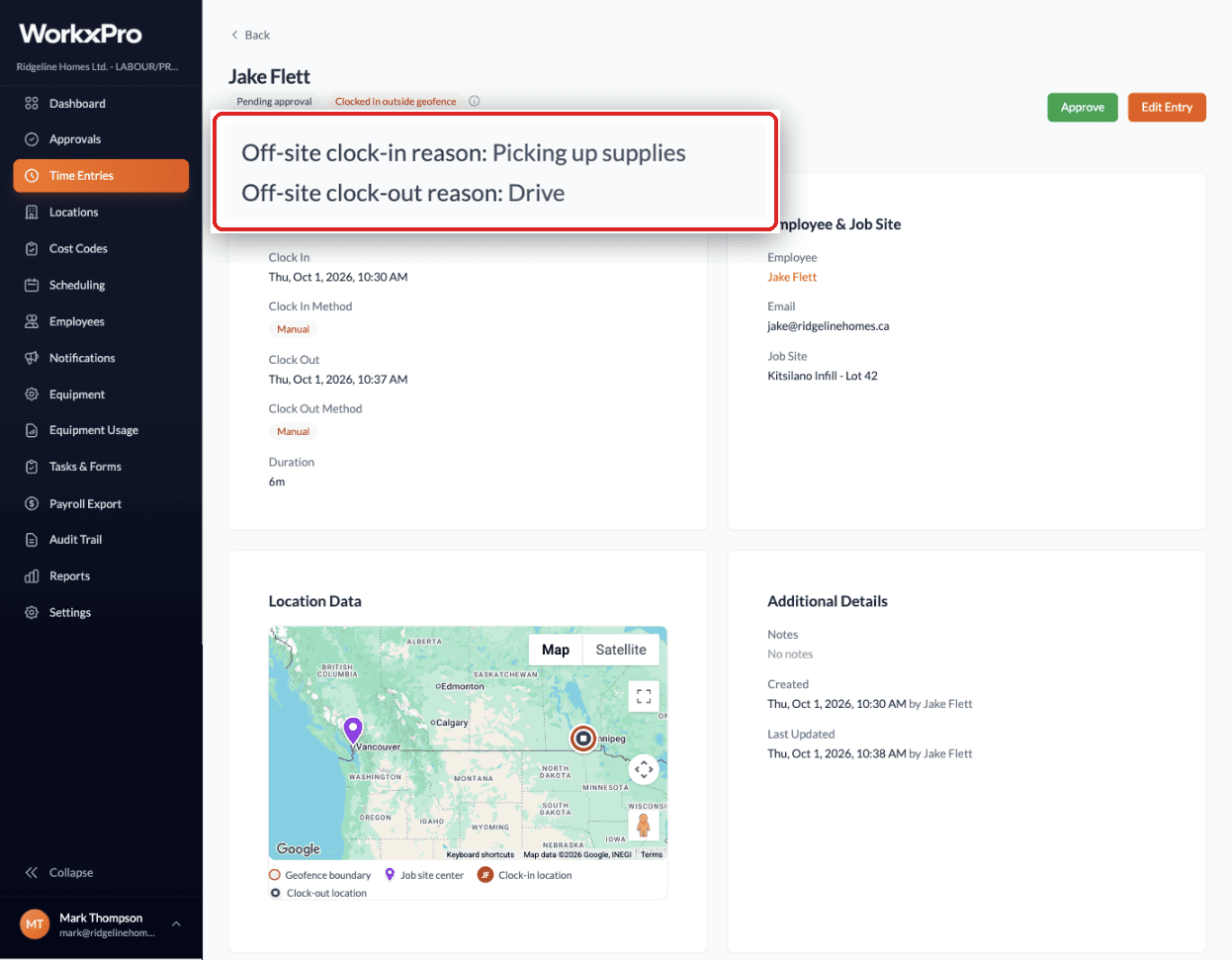
The reason shows on the entry
Open the time entry. Under the worker name, next to the geofence badge, you see Off-site clock-in reason and Off-site clock-out reason. The map below shows where the pin landed. The same lines appear on the entry card and in the approvals detail.
Common questions
When does the app ask for a reason?
Only when the phone says the worker is outside the geofence of the site they picked. Clock-in asks when Geofence Validation is set to Soft Warning. Clock-out asks when Clock-Out Geofence Prompt is on, which turning on Require Reason switches on for you. A worker who is on site is never asked.
Can the worker skip it?
No. The Clock In or Clock Out button stays off until they type something. They can cancel instead, which leaves the shift as it was: not clocked in, or still clocked in.
Where does the reason show up?
On the time entry in the portal, under the worker name next to the Clocked in outside geofence badge, as Off-site clock-in reason or Off-site clock-out reason. It is also on the entry card and in the approvals detail. The reason is kept separate from notes and cannot be edited.
What happens with Hard Block?
Hard Block stops the clock-in outright, so there is nothing to explain and no prompt. Clock-out is never blocked, so it still asks for a reason when the worker is off-site.
A worker was on site but was asked for a reason. Why?
The phone gave a rough location. The entry will also carry a Location unverified badge. The usual cause on Android is Precise location switched off for WorkxPro: Settings, Apps, WorkxPro, Permissions, Location, then turn on Use precise location. On iPhone it is Settings, Privacy and Security, Location Services, WorkxPro, Precise Location.
Does this need an app update?
Yes. Workers need the current version of the mobile app. Older versions show the plain Clock in anyway? question and do not collect a reason.
More in Time tracking
Follow along in your own account.
Start Free Trial