
How to set up billable tickets
Updated October 9, 2026
Billable tickets let your team mark each resolved ticket as Billable or No charge. In WorkxPro the choice is made when the ticket is resolved, in the app or the web portal. Every billable ticket then lands in Tickets, Billing, To bill, grouped by customer. Bill it in your accounting system, then click Mark billed so it leaves the list.
Pick Billable or No charge when you resolve a ticket
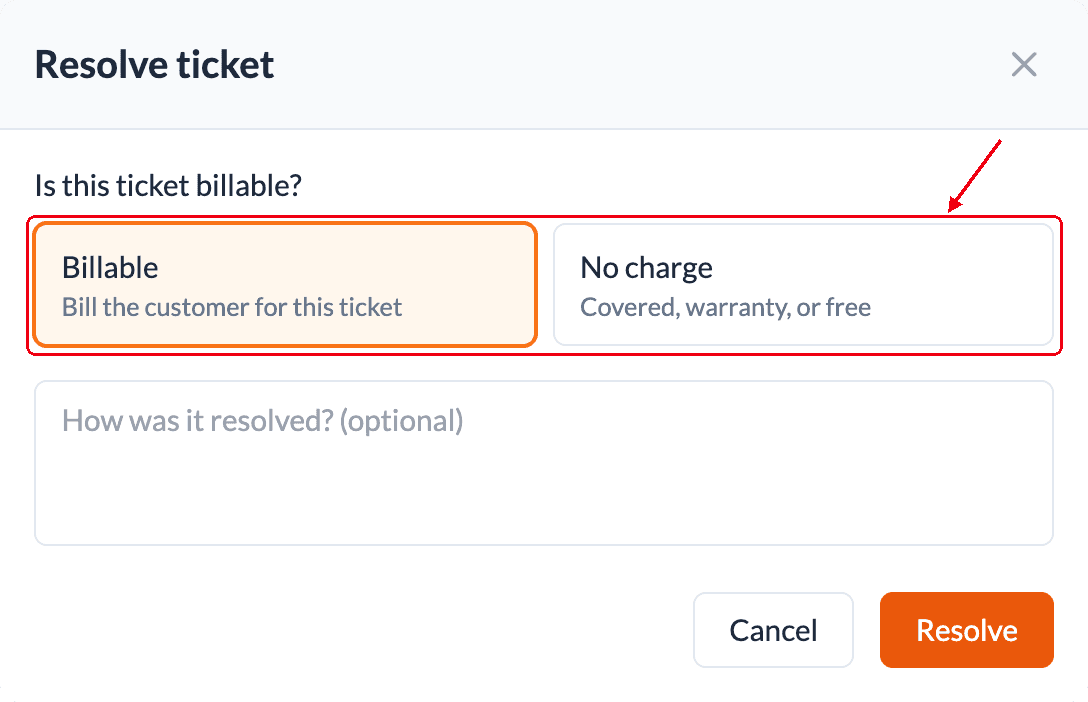
Open the ticket and click Resolve. Choose Billable or No charge, add a note if you like, then click Resolve. The choice is required, so no ticket closes without one.
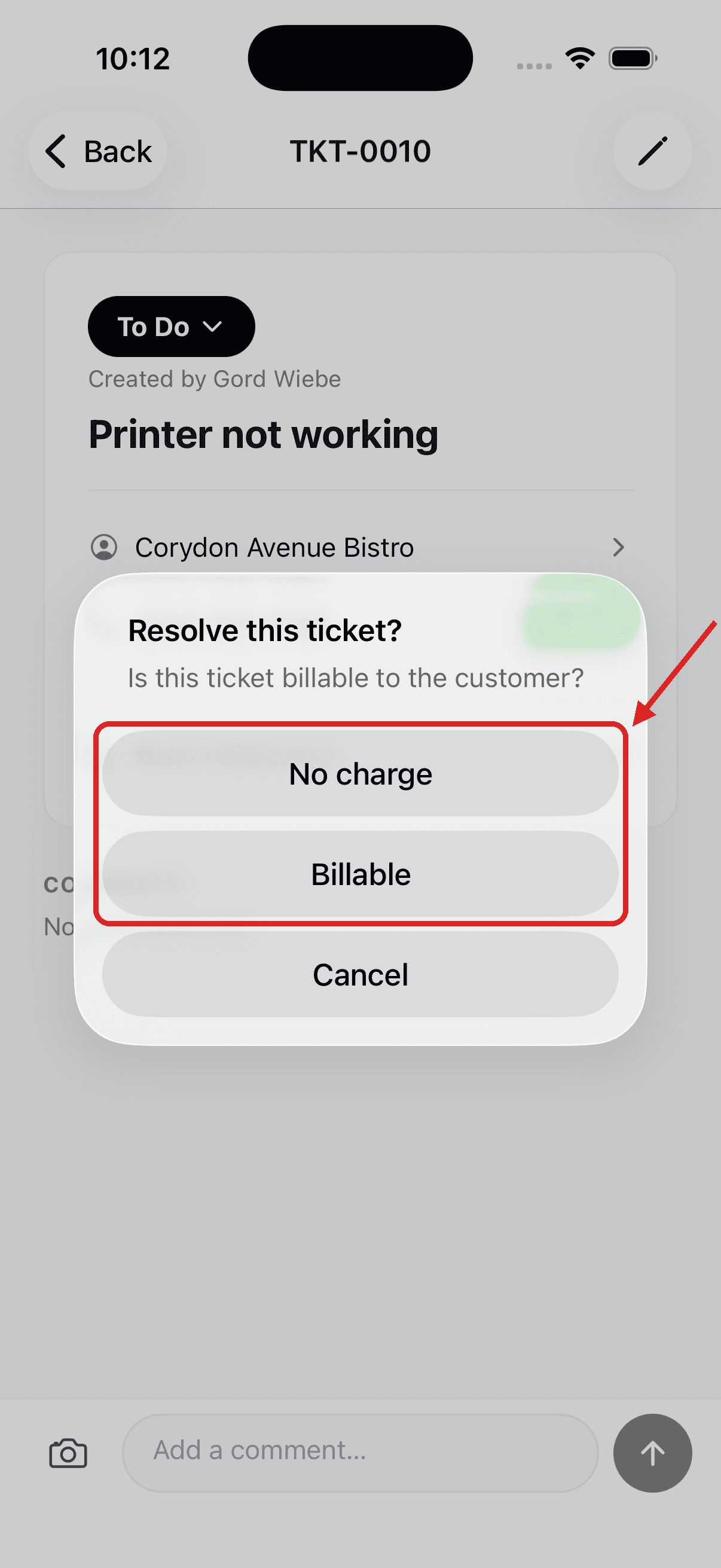
Your techs choose it in the app too
Resolving a ticket on the phone asks the same question: No charge or Billable. If the ticket has no customer yet, picking Billable asks for one first.
Change it on the ticket
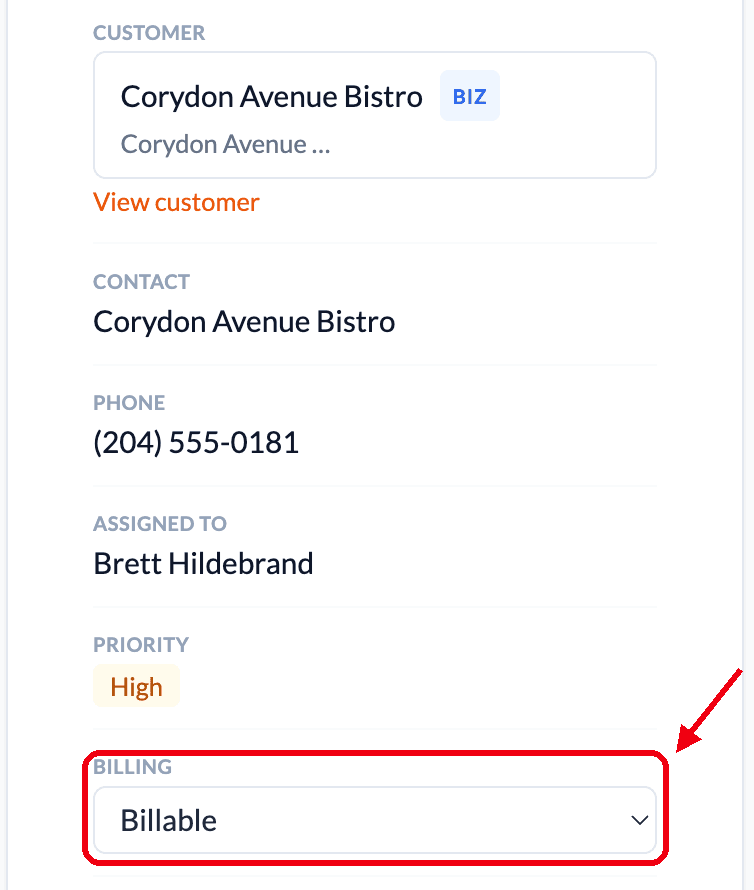
The Billing line in the ticket details shows Billable, No charge or Not decided. Change it any time until the ticket is billed. You can also set it before the ticket is resolved.
Find everything to invoice on the Billing tab
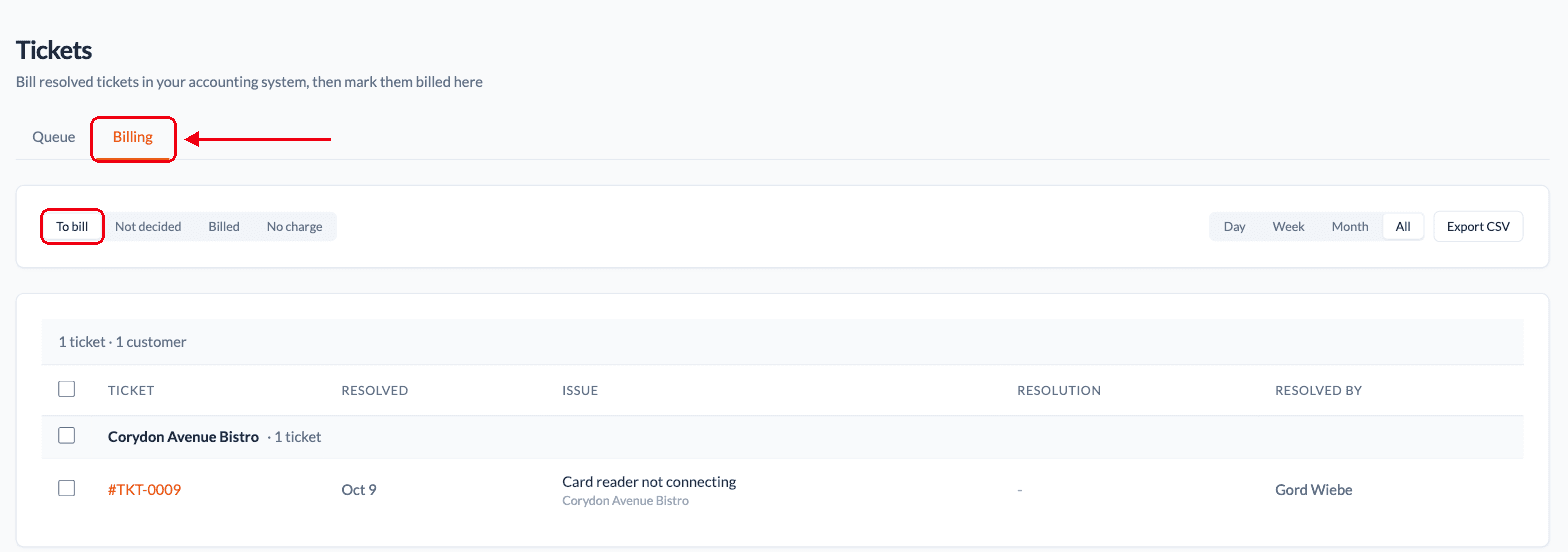
Go to Tickets, then Billing. To bill lists every billable ticket that has not been invoiced yet, grouped by customer. Use Day, Week, Month or All to match how often you bill, and Export CSV to take the list into your accounting system.
Mark them billed once they are invoiced
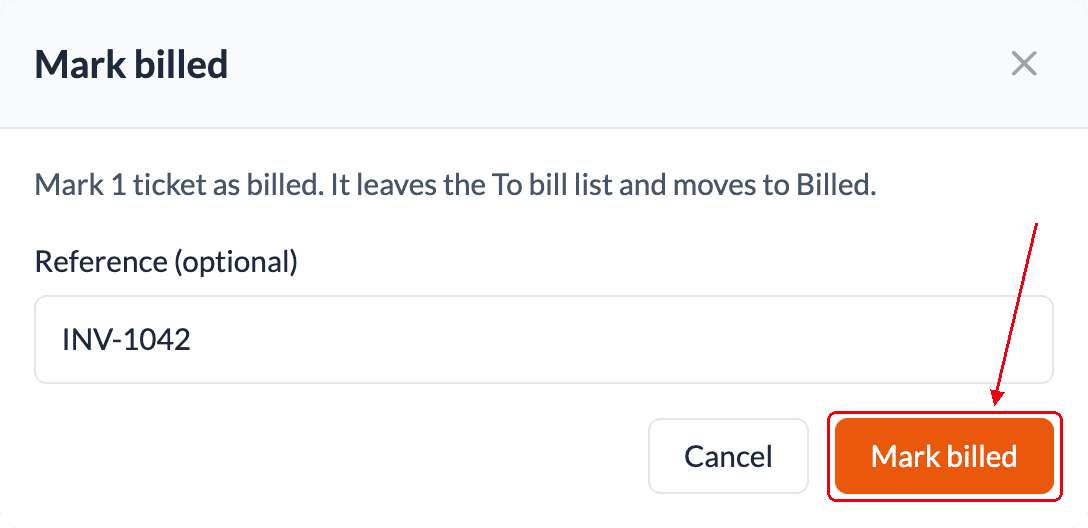
Bill the tickets in your accounting system. Then tick them in To bill and click Mark billed. They move to the Billed list, so To bill only shows what is left.

Add your invoice number
The reference is optional. Type your invoice number so you can match the ticket to the invoice later. Marked one by mistake? Open Billed, tick it and click Undo billed.
Sort out older tickets
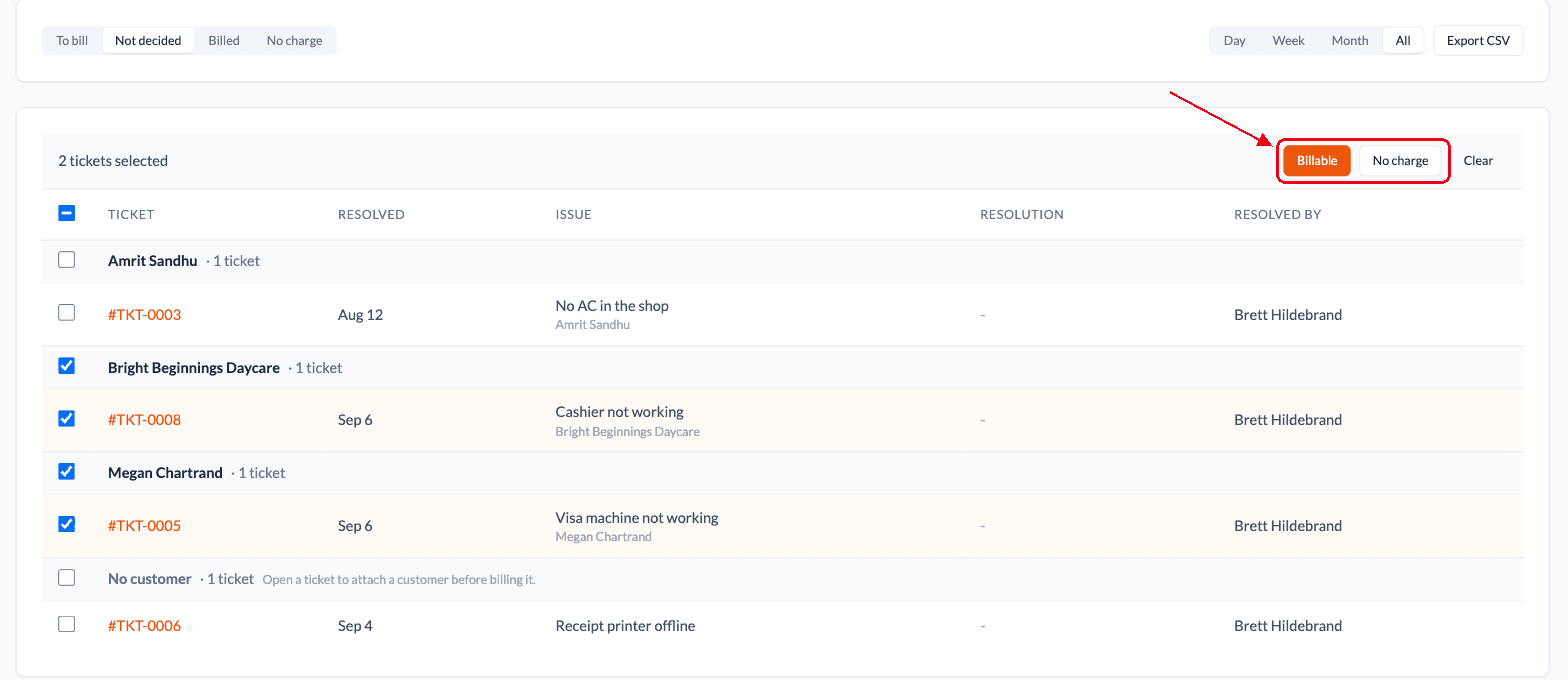
Tickets resolved before billing was set up wait in Not decided. Tick them and click Billable or No charge. A ticket with no customer needs one before it can be billable.
Mark customers on a support contract or warranty
Edit the customer and set Coverage to Support contract or Warranty, with an end date if it has one. Their tickets show the coverage, and resolving one suggests No charge.

Common questions
What is a billable ticket?
A ticket the customer pays for. When a ticket is resolved it is marked Billable or No charge, so the office knows exactly which ones to invoice.
Does WorkxPro create the invoice?
No. The Billing tab lists the tickets to invoice. You bill them in your own accounting system, then mark them billed in WorkxPro. You can add your invoice number as a reference.
What if a ticket has no customer?
A billable ticket needs a customer to bill. If someone picks Billable on a ticket without one, WorkxPro asks them to attach a customer first. You can attach one on a resolved ticket too, right up until it is billed.
What happens to tickets closed before billing was set up?
They wait in the Not decided list on the Billing tab. Tick them and choose Billable or No charge, a few at a time or all at once.
Can I undo Mark billed?
Yes. Open the Billed list, tick the ticket and click Undo billed. It goes back to To bill and its reference is cleared.
How do support contracts and warranties work?
Set Coverage on the customer to Support contract or Warranty, with an end date if it has one. Tickets for that customer show the coverage, and resolving one suggests No charge. Your team can still pick Billable.
More in Service tickets
Follow along in your own account.
Start Free Trial